
Wildfire & Smoke Detection
Detect visible wildfire smoke plumes or active fire in fixed fire watch tower security camera footage.
datasciencealliance-org.find-events.wildfire-smoke-detection:latest
Prompt
Analyze the provided video footage to determine when visible wildfire smoke or active fire appears in a fixed fire watch tower security camera feed. The camera is a stationary outdoor surveillance camera mounted on a fire watch tower. Label smoke_or_fire only when there is clear visual evidence of wildfire smoke or active fire connected to a ground source.
...Run the full prompt in your EyePop.ai dashboard
Input
Video
Output
Event timestamp ranges for smoke_or_fire, or no event if wildfire smoke/fire is not visible
Image size
640x640
Model type
EyePop.ai VLM
FPS
1

How It Works
Problem Description:
Fire safety cameras and fire watch tower feeds are used to monitor large outdoor landscapes for early signs of wildfire activity. However, manually reviewing these feeds is difficult to scale across many locations and can delay response when smoke or fire first appears. At the same time, false alarms can happen when ordinary clouds, fog, dust, sunset lighting, or camera overlays are mistaken for wildfire smoke.
The Find Event task on the Abilities tab can analyze fire safety video footage and identify the timestamp ranges where visible wildfire smoke or active fire appears.
For example, if a fixed fire watch tower camera captures a gray or dark smoke plume rising from a forested hillside, the footage should be flagged with the event label smoke_or_fire. If the footage only shows vehicle dust, fog, clouds, haze, or a normal dry landscape, the footage should not be flagged.
We will need to strictly separate true wildfire smoke or fire from visually confusing negative cases. This means excluding vehicle dust, dirt road dust, fog, marine layer, normal clouds, sunset glow, haze, on-screen timestamps, monitoring camera labels, battery icons, and other UI overlays unless there is clear visual evidence of a smoke plume connected to a ground source or visible flames.
Our expected inputs are videos from fixed fire safety cameras or fire watch tower feeds, and the expected output will be timestamp ranges identifying exactly when smoke_or_fire appears throughout the footage. Videos with no visible wildfire smoke or fire should return no event.
UI Tutorial
Step 1: Create a Find Event Ability
Go to the Abilities tab and select the button Create Ability.
Fill out the basic information about the ability.
Name: wildfire-smoke-detection
Description: Detect visible wildfire smoke plumes or active fire in fixed fire watch tower security camera footage.
Since we are detecting events in a video timeline, select the task type as Find Event.
Then click Continue.
Step 2: Task Configuration
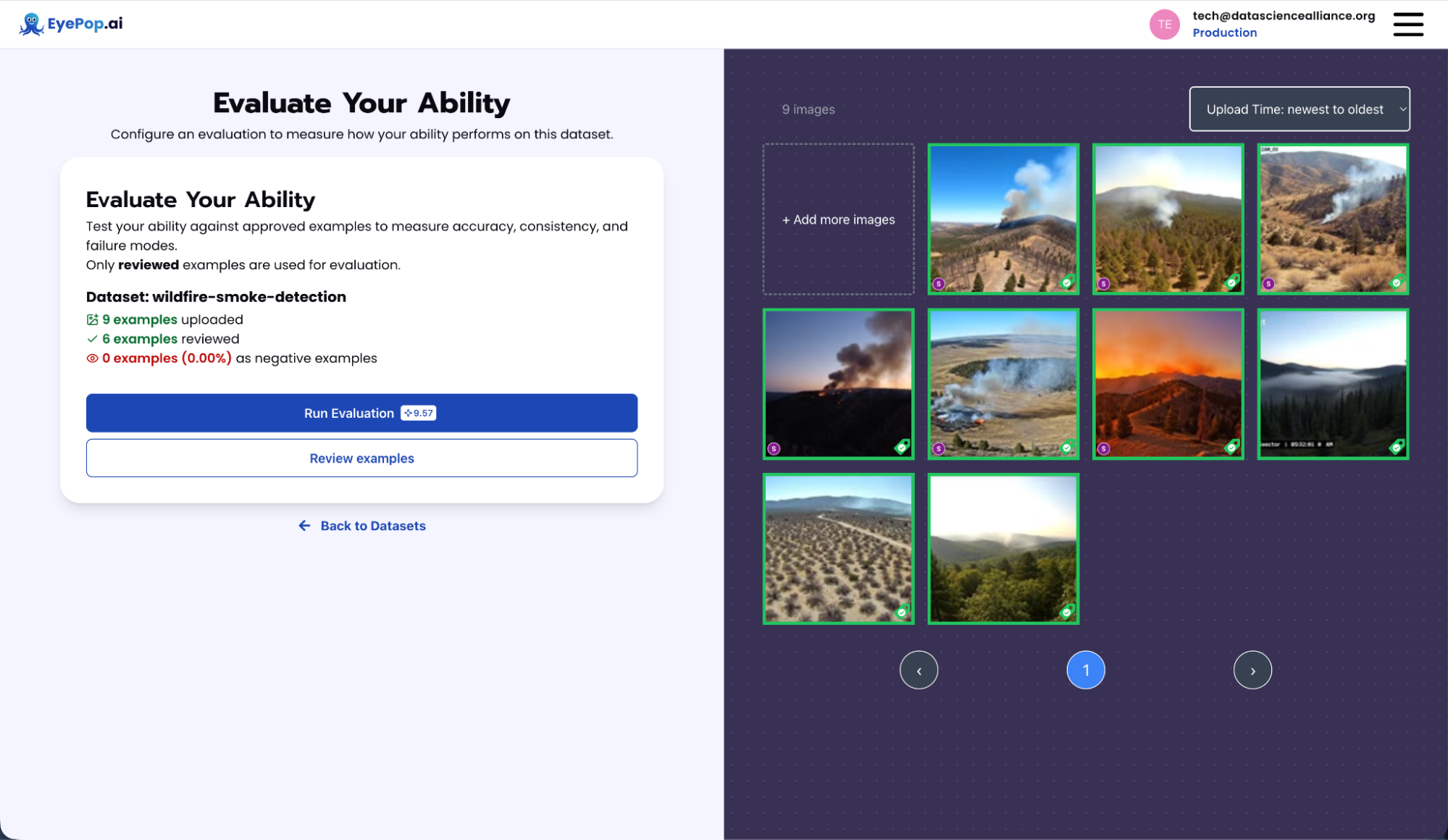
To configure the task, select a dataset for the wildfire smoke detection ability. If you have already uploaded your wildfire or smoke detection videos in a dataset, select the name of that dataset.
If you have not created a dataset yet, select, upload your videos, and create this event name: smoke_or_fire.
When labeling the dataset, label only the timestamp ranges where visible wildfire smoke or active fire appears.
For negative videos, leave the entire video unlabeled if there is no visible wildfire smoke or active fire.
Negative videos can include vehicle dust, dust clouds from dirt roads, fog, haze, normal clouds, sunset glow, dry landscapes, or fire watch tower footage with no visible smoke plume or flames.
Step 3: Configuration
Our next step is to configure the prompt, select the model, set the image size, and set the video FPS. For this use case, we recommend using the below prompt and settings for highest accuracy and best results.
Recommended settings:
Max New Tokens: 20
Scaled to: Medium - 640x640
FPS: 1
We use FPS = 1 because this ability is meant to check one frame per second from a fire safety feed. Smoke plumes and visible fire usually persist across multiple seconds, so 1 FPS is enough for event detection while keeping the evaluation efficient.
We use Max New Tokens = 20 because the ability should only output a short event range or No event. A larger token limit can cause the model to write explanations instead of returning a clean event output.
Step 4: Run Evaluation
To check how well the prompt performs against the dataset, run the evaluation from the Abilities tab.
Before running the evaluation, review your dataset and make sure the event labels are correct. Visible wildfire smoke or fire should be labeled with the timestamp range as smoke_or_fire. Videos with no visible wildfire smoke or fire should be left unlabeled.
For example, a video with smoke visible for the full 4 seconds should be labeled for the full clip. A video with vehicle dust but no fire should be left unlabeled.
Step 5: Check Evaluation
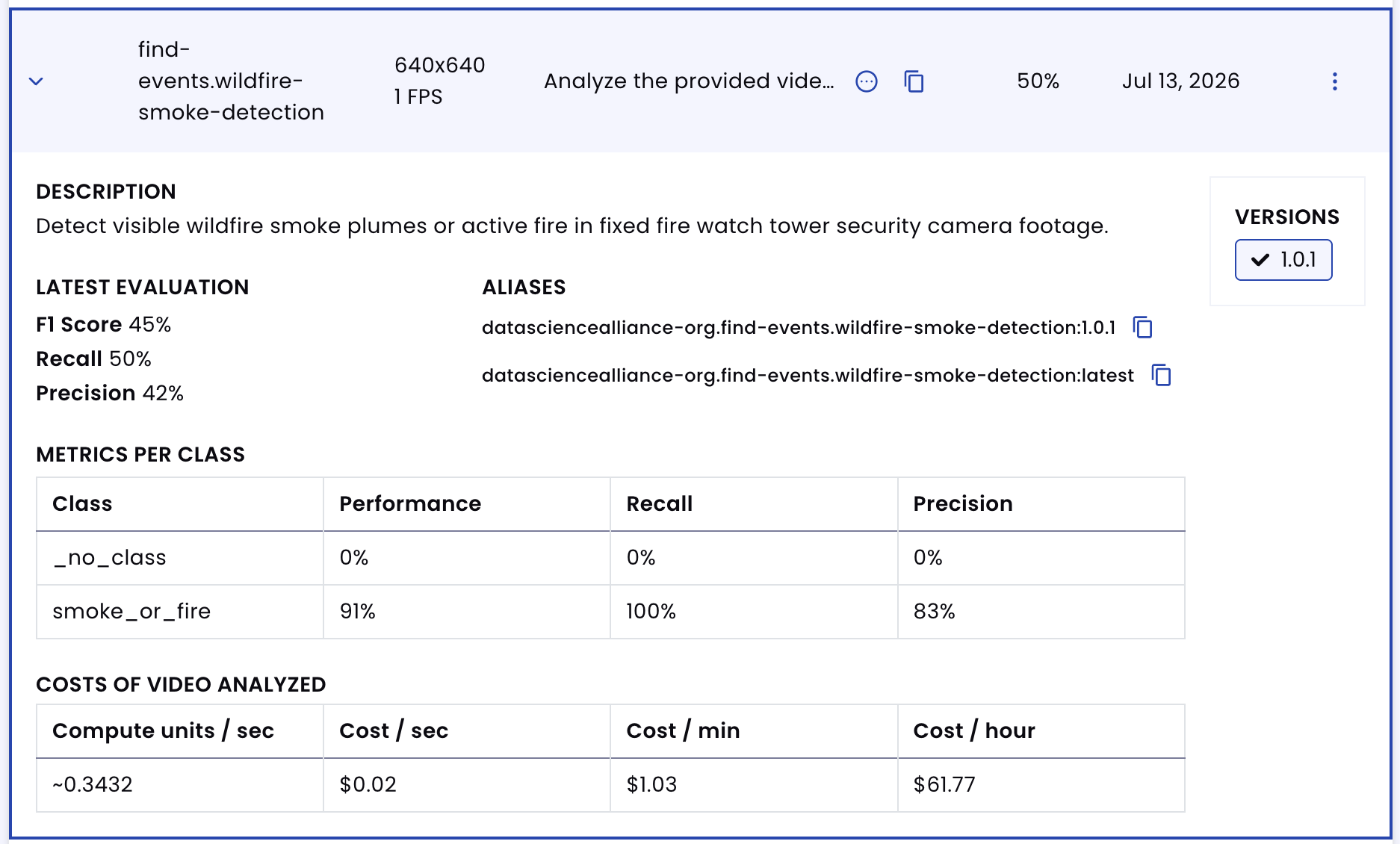
All evaluations can be reviewed in the Abilities tab by clicking the dropdown arrow next to the associated ability alias. Evaluations can take around 15-20 minutes depending on the size of the dataset.
In addition to the performance, recall, and precision percentages, you can inspect the predictions by revisiting the reference dataset. Click the three dots and select Go to reference dataset.
Select one of the videos in the dataset and click Review.
After running the evaluation, compare what the model labeled as smoke_or_fire against your source-of-truth labels. This helps you identify false positives, false negatives, and prompt changes needed to improve accuracy.
If the model flags vehicle dust, clouds, fog, or haze as smoke/fire, add more hard negative examples and make the prompt stricter. If the model misses real smoke or distant flames, add more positive examples with thin smoke, distant smoke columns, and small fire lines.
Tips for Accuracy
1. Use Explicit Negative Cases
Telling the model what not to detect is just as important as defining the smoke/fire event. For this ability, the most important negative cases are vehicle dust, dirt road dust, construction dust, wind-blown sand, normal clouds, fog, marine layer, mist, haze, sunset glow, sun glare, lens flare, vehicle exhaust, normal dry hillsides, camera blur, low contrast footage, monitoring camera text overlays, fake timestamps, date stamps, battery icons, and watermarks.
Without these exclusions, the model may incorrectly flag ordinary atmospheric conditions or on-screen camera overlays as wildfire smoke.
2. Be Careful with Synthetic Camera Overlays
Synthetic videos often add fake monitoring camera text, timestamps, battery icons, or labels because they are trying to look like surveillance footage. These overlays can confuse the model because the model may read the printed timestamp instead of detecting the actual event.
When generating synthetic videos, include this instruction in the video prompt: Do not include any text, timestamps, date stamps, camera labels, battery icons, logos, watermarks, captions, UI overlays, or monitoring camera interface graphics.
If a synthetic video already contains overlays, the ability prompt should explicitly tell the model to ignore them.
3. Define the Camera Context
The camera setup is important. The prompt should clearly state that the video comes from a fixed fire watch tower security camera.
This helps the model expect wide outdoor landscape footage instead of handheld fire footage, close-up flames, or cinematic wildfire videos.
The camera should be described as stationary, wide-angle, outdoor, mounted on a fire watch tower, not panning, not zooming, and not moving.
Get early access
Want to move faster with visual automation? Request early access to Abilities and get notified as new vision capabilities roll out.