
Vehicle Damage Detection
Accurately and efficiently identifying vehicle damage from video, still images.
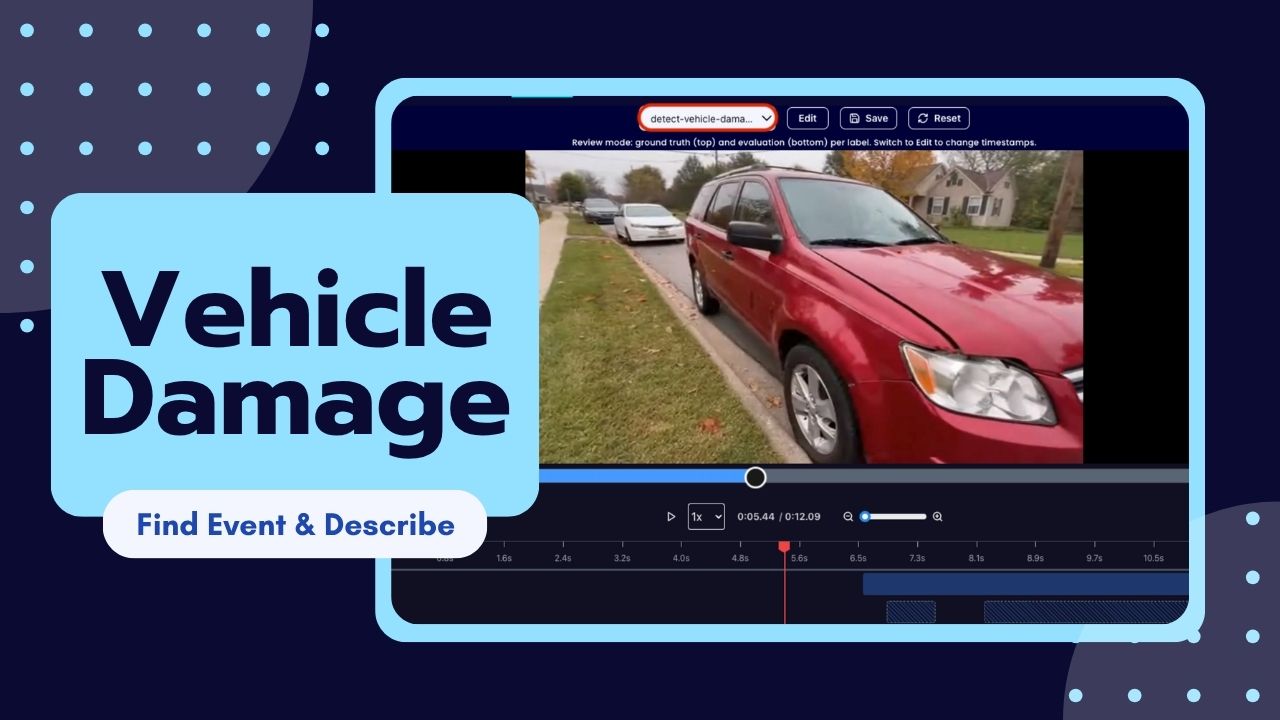
eyepop.describe.vehicle-damage:latest & eyepop.find-events.detect-vehicle-damage:latest
Determine the primary content of the input and assign exactly one label from the following list: ['Damage', 'No_Damage'].
Choose 'Damage' only if the image primarily shows a vehicle exhibiting clear, actionable physical defects. This includes dents, crushed or crumpled body panels, shattered or cracked glass (windows, mirrors, lights), deep scratches that penetrate the paint, or broken and
...Run the full prompt in your EyePop.ai dashboard
Input
Video
Output
Text
Model type
EyePop.ai VLM

How It Works
Insurance video footage, handheld and slightly shaky, slowly walking in an orbiting circle around a parked blue four-door SUV. As the camera pans over the car we note several damages: a shattered headlight and a crumpled side door. The video includes a full walk around the entire car, focusing on damaged parts but no closeups. Bright, overcast daylight, parked on a typical suburban street
Processing vehicle insurance claims or doing a car inspection requires accurately and efficiently identifying vehicle damage. However, manually reviewing video footage of vehicles is time-consuming, prone to human error, and inefficient. Being able to automatically find damage and instantly generate repair assessments is vital for quickly processing claims and better for customers. To do this, we will utilize the Find Event task that scans the video footage to locate occurrences of vehicle damage, and then the Describe task that analyzes those specific segments to detail the exact nature of the damage and create a repair quote.
For example, a specific segment of a walk around video should be flagged by Find-Event with the label Damage if it shows a vehicle with issues such as scratches, shattered windows, and/or fallen off parts. Then the Describe task will process the segment to output a detailed text summary alongside an estimated quote for the fix.
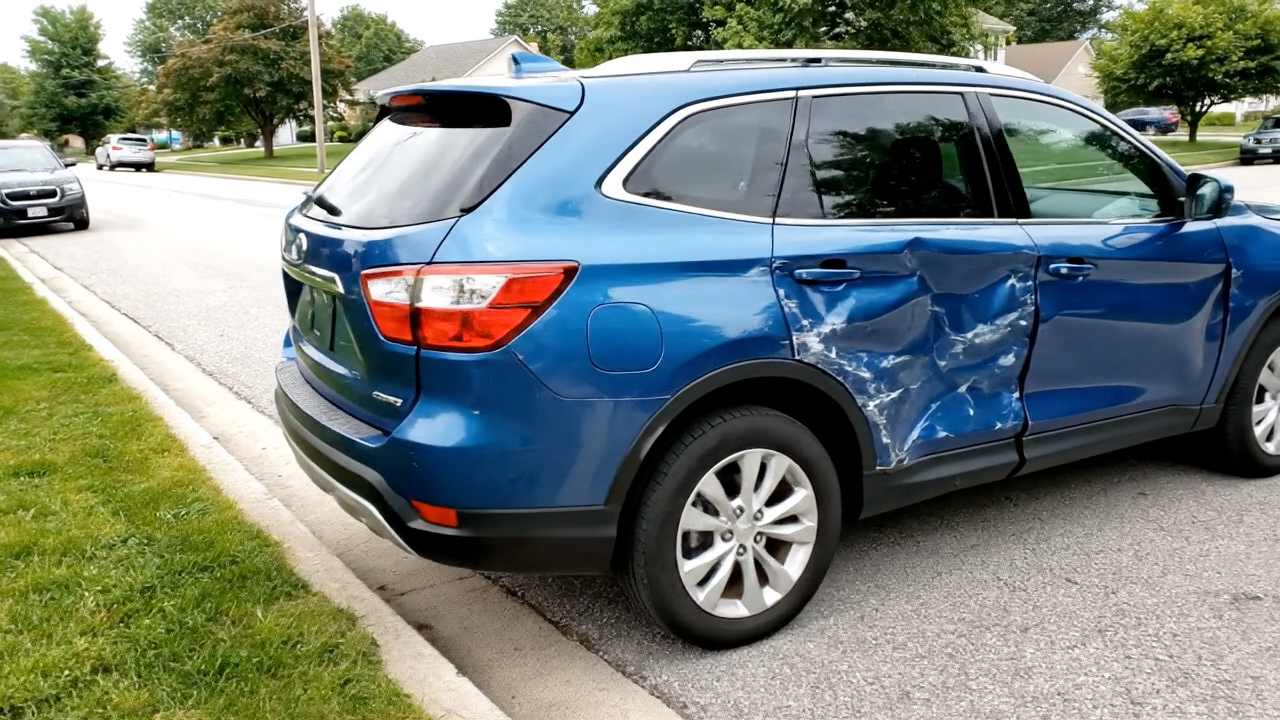
We will need to separate occurrences of non-damaged car footage and visual artifacts like shadows with real vehicle damage.
Our expected inputs for the Find Event task are the videos of the vehicles and then expected outputs will be the timestamps of where the damage is visible. Then the Describe task will describe the damage on the car with quotes after feeding it the video.
UI Tutorial
Step 1: Create an Find Event Ability
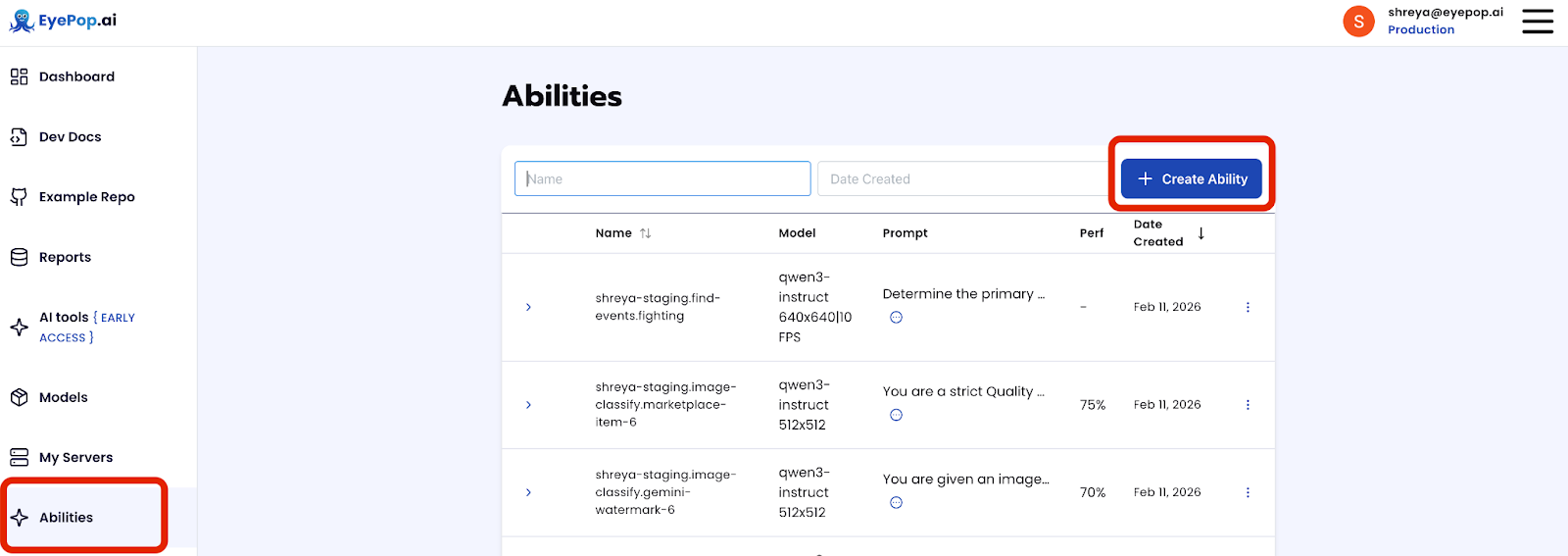
Go to the Abilities tab and select the button Create Ability. Get early access to Abilities here >
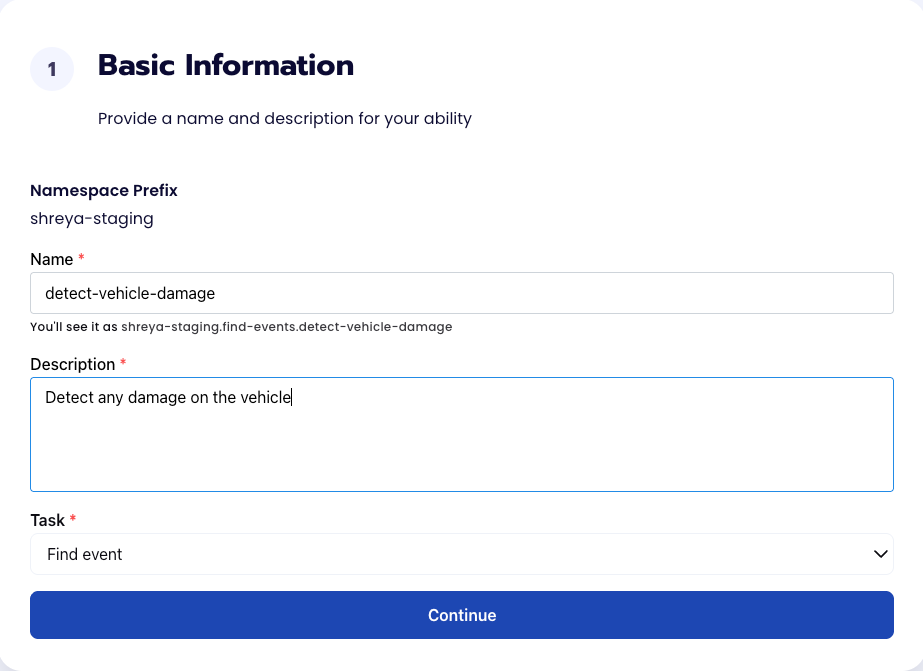
Fill out basic information about the ability such as its name and the description of the task itself. Since we are classifying an image, select the Task Type as Find Events.
Step 2: Find Event Task Configuration
To configure the task, we need to select a dataset for the specific task. If you have already uploaded your videos in a dataset simply select the name of your dataset. However, if you haven’t already done so then select <New Dataset>, create a label Damage, upload your videos, and label them by identifying where the damaged parts of the vehicle appear in the video.
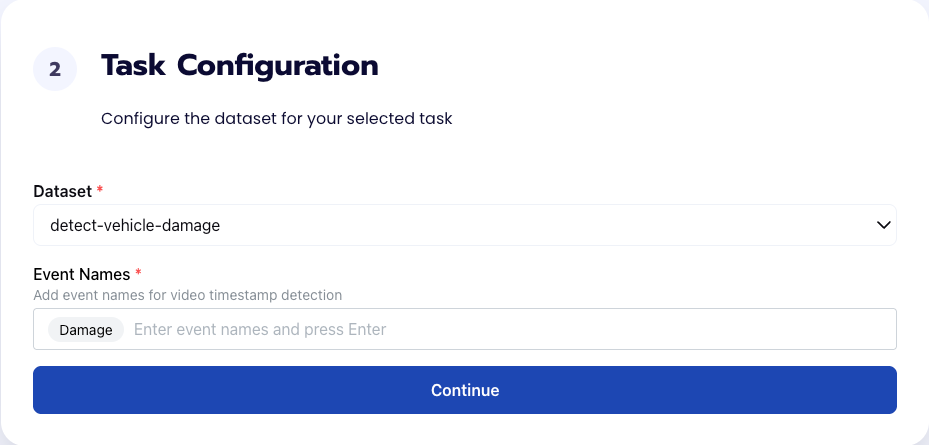
Step 3: Find Event Configuration
Our next step is to configure the prompt, select the model, and image size. For this use case, we recommend using the below prompt and settings for highest accuracy and best results.
Prompt:
Determine the primary content of the input and assign exactly one label from the following list: ['Damage', 'No_Damage'].
Choose 'Damage' only if the image primarily shows a vehicle exhibiting clear, actionable physical defects. This includes dents, crushed or crumpled body... Get early access to Abilities here >
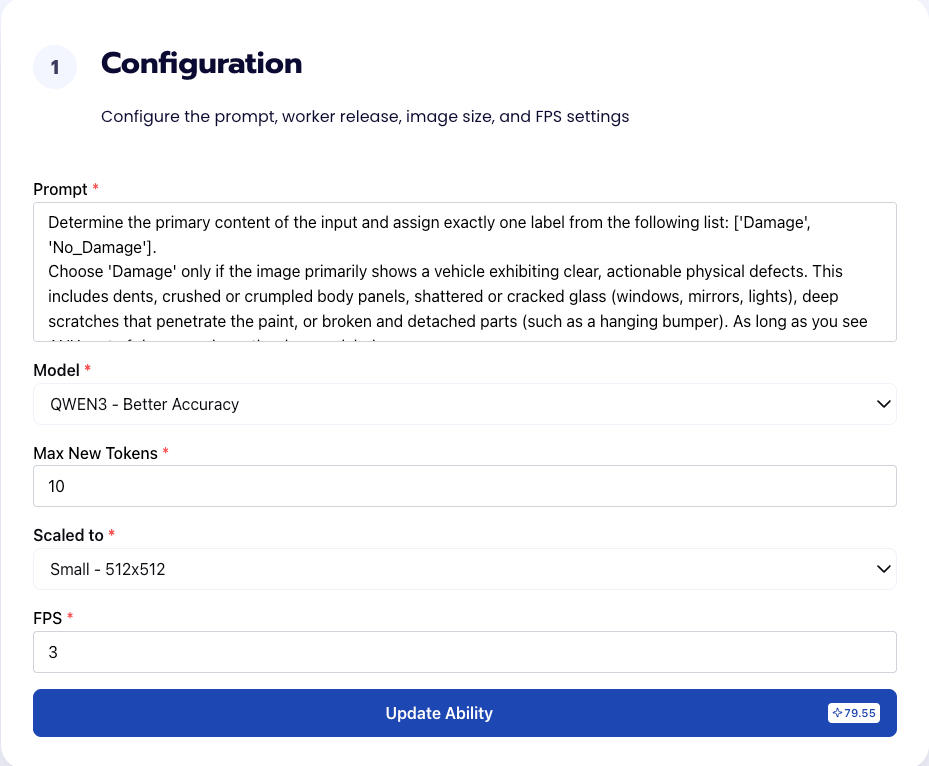
We chose Max New Tokens to be 10 since outputting the label Damage won’t take too many new tokens. In addition, we use an FPS of 3 to maximize efficiency; we are simply looking at damages on a parked car so we don’t need a high FPS rate since that would feed the model redundant images. An FPS of 3 will balance latency with visual detail to catch all damages.
Step 4: Run Find Event Evaluation
To check how well the prompt does against the dataset, our next step is to run the evaluation. If needed, review the examples in your dataset to ensure all necessary images can be used in the evaluation.
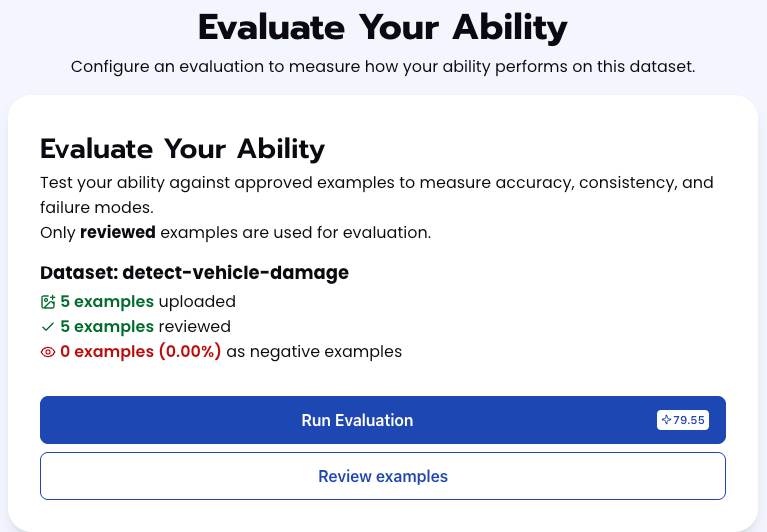
Step 5: Check Find Event Evaluation
All evaluations can be reviewed in the Abilities tab by clicking the dropdown arrow next to the associated ability-alias. Evaluations can take around 15-20 minutes to complete based on the size of the dataset.
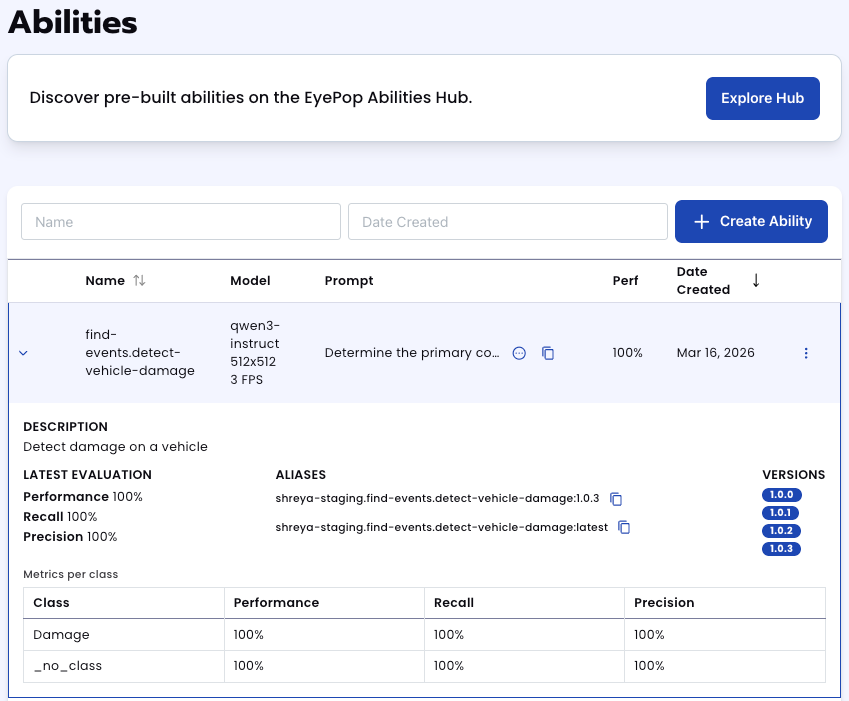
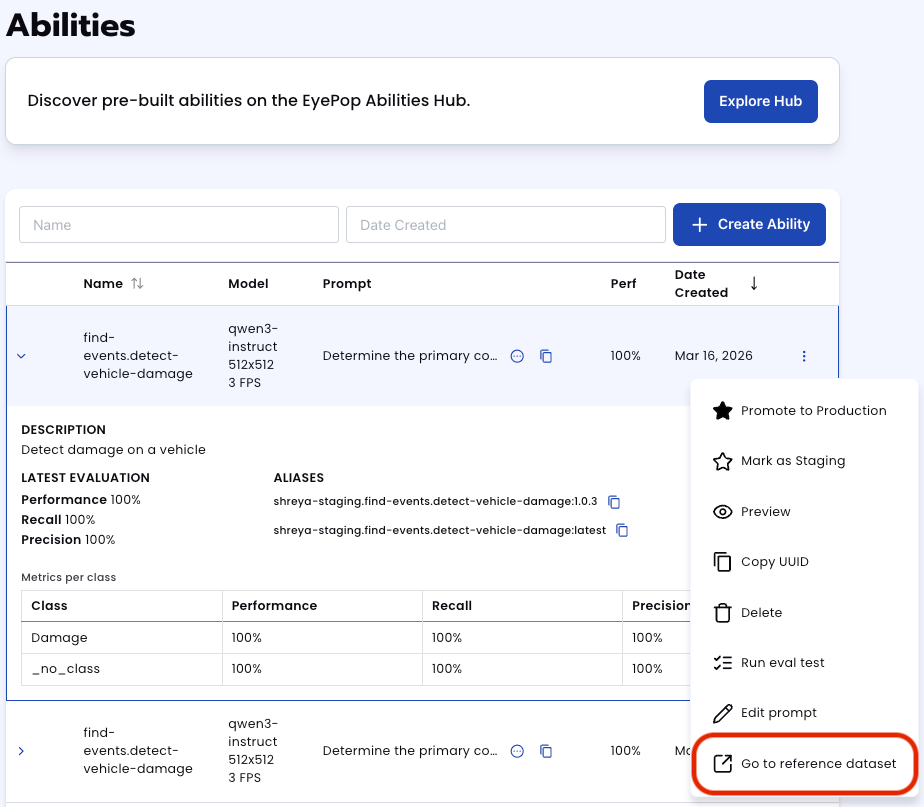
In addition to the performance, recall, and precision percentages you can find in evaluation a visualization of what the model predicted by revisiting the dataset. Click on the three dots and select “Go to reference dataset”.
Select one of the videos in the dataset and click on the review button.
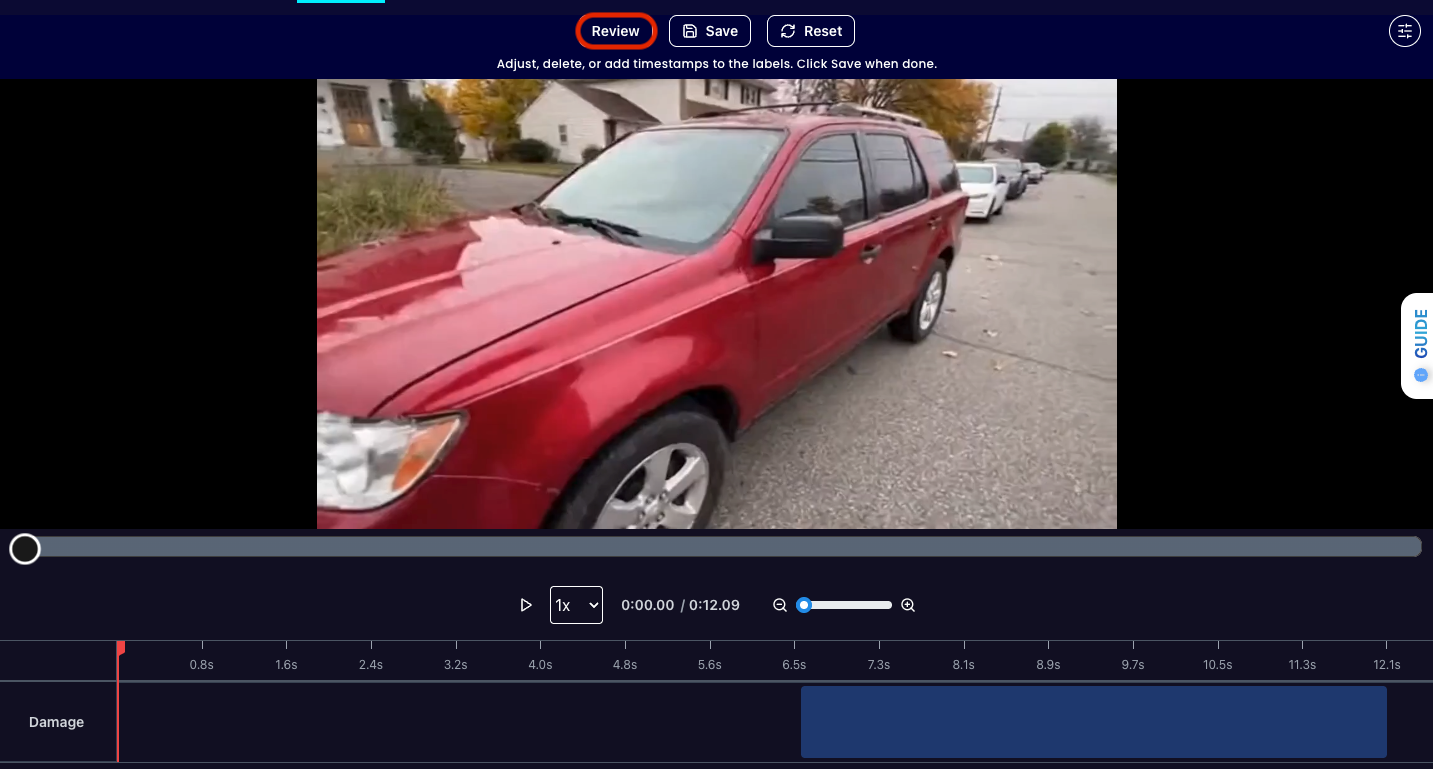
After running the evaluation you can see what the model labelled as Damage and compare it to what you labelled as Damage. With this, you can improve your prompts and thus improve your accuracy.
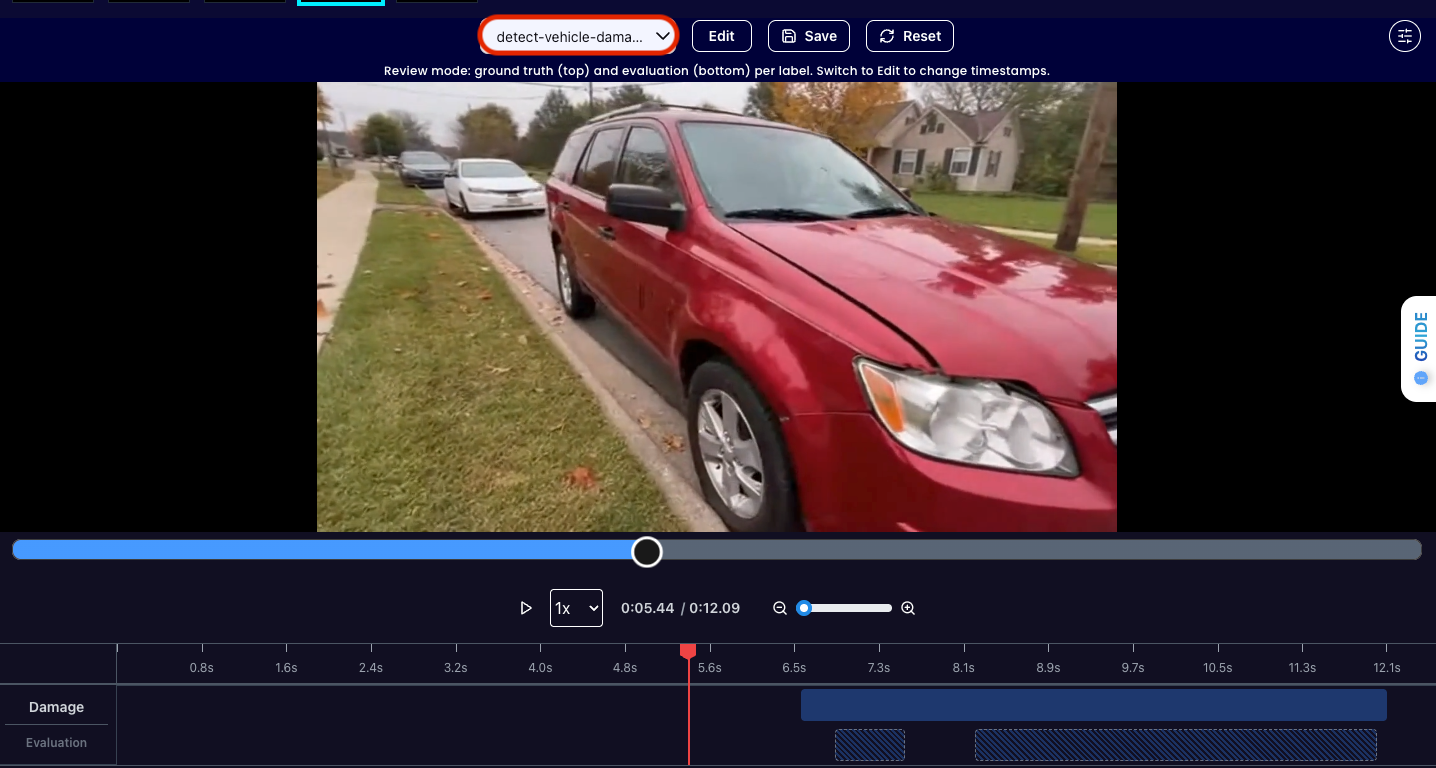
In addition, you can also review the differences between different iterations of your prompt by selecting the dropdown arrow. This helps refine your prompt even further. Get early access to Abilities here >
Step 6: Create Describe Ability
So far, we have created our find-event ability to identify where damage appears in a video however we still need to create a damage report. We can use the Describe ability with video in order to get a text description of the segment including damage and ask the model for an estimate on cost.
ability_prototypes = [
   VlmAbilityCreate(
       name=f"{NAMESPACE_PREFIX}.describe.vehicle-damage",
       description="describe the vehicle damage and provide an estimated quote of how much it would cost to fix",
       worker_release="qwen3-instruct",
       text_prompt=damage_prompt,
       transform_into=TransformInto(),
       config=InferRuntimeConfig(
           max_new_tokens=250,
           image_size=512
       ),
       is_public=False
   )
]
Get early access
Want to move faster with visual automation? Request early access to Abilities and get notified as new vision capabilities roll out.