
Identify Vehicle Make and Model
Detect the Make & Model of a vehicle.
eyepop.describe.vehicle-make-model:latest
Prompt
Return only the make and model of the vehicle shown
...Run the full prompt in your EyePop.ai dashboard
Input
Image
Output
Text
Image size
512X512
Model type
EyePop.ai VLM

How It Works
As its name implies, the Describe Image task on the Abilities tab does exactly that: it generates a detailed text description of any input image. This is a highly versatile tool because you can use it as a foundational building block alongside other abilities, or use it on its own to get an understanding of a scene without needing to view the image directly.
We can use the Describe Image task in order to determine a vehicle’s make and model. Verifying vehicle details often requires a manual, time-consuming review of documentation and/or an encyclopedia of information of cars and model types. By automating this visual inspection, businesses can standardize record-keeping, track vehicles, and reduce human error.
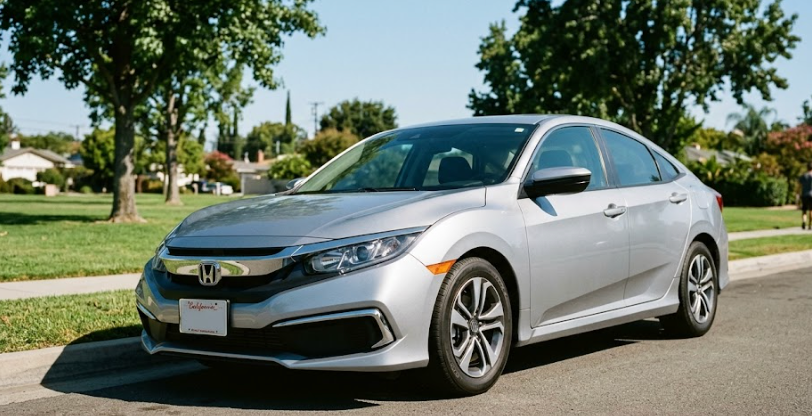
With the ability, if you upload an image of a standard sedan, the model shouldn't just say "a silver car." Based on a strong prompt, it should output a thorough description of the vehicle and a definitive identification of its make and model. For example:
"Honda Civic"
SDK Tutorial
First, let’s define the ability:
ability_prototypes = [
    VlmAbilityCreate(
        name=f"{NAMESPACE_PREFIX}.describe.vehicle-make-model",
        description="Identify the make and model of the vehicle shown",
        worker_release="qwen3-instruct",
        text_prompt="""
          Return only the make and model of the vehicle shown
        """,
        transform_into=TransformInto(),
        config=InferRuntimeConfig(
            max_new_tokens=300,
            image_size=512
        ),
        is_public=False
    )
]
Next, we can actually create the ability with the following code:
with EyePopSdk.dataEndpoint(api_key=EYEPOP_API_KEY, account_id=EYEPOP_ACCOUNT_ID) as endpoint:
   for ability_prototype in ability_prototypes:
       ability_group = endpoint.create_vlm_ability_group(VlmAbilityGroupCreate(
           name=ability_prototype.name,
           description=ability_prototype.description,
           default_alias_name=ability_prototype.name,
       ))
       ability = endpoint.create_vlm_ability(
           create=ability_prototype,
           vlm_ability_group_uuid=ability_group.uuid,
       )
       ability = endpoint.publish_vlm_ability(
           vlm_ability_uuid=ability.uuid,
           alias_name=ability_prototype.name,
       )
       ability = endpoint.add_vlm_ability_alias(
           vlm_ability_uuid=ability.uuid,
           alias_name=ability_prototype.name,
           tag_name="latest"
       )
       print(f"created ability {ability.uuid} with alias entries {ability.alias_entries}")
That’s it! To run the prompt against an image here is some sample evaluation code:
from pathlib import Path


pop = Pop(components=[
   InferenceComponent(
       ability=f"{NAMESPACE_PREFIX}.describe.vehicle-make-model:latest"
   )
])


with EyePopSdk.workerEndpoint(api_key=EYEPOP_API_KEY) as endpoint:
   endpoint.set_pop(pop)
   sample_img_path = Path("/content/sample_img.png")
   job = endpoint.upload(sample_img_path)
   while result := job.predict():
      print(json.dumps(result, indent=2))


print("Done")
After running the evaluation you can see what the model described and compare it to your source of truth. With this, you can improve your prompts and thus improve your accuracy.
Get early access
Want to move faster with visual automation? Request early access to Abilities and get notified as new vision capabilities roll out.