
Empty Parking Spots
Counting the number of empty parking spots in an image of a parking lot.
datasciencealliance-org.describe.empty-parking-spots:latest
Prompt
Task: Calculate the number of empty parking spots.Follow this step-by-step method internally:
1. Estimate total lot capacity by counting every painted parking space across all angled and straight rows...
...Run the full prompt in your EyePop.ai dashboard
Input
Image
Output
An Integer
Image size
1000x1000
Model type
QWEN3 - Better Accuracy

How It Works
Parking lots are essential components of transportation infrastructure, but identifying available parking spaces can be challenging, particularly in large or crowded parking areas. Drivers often spend unnecessary time searching for available spaces, contributing to traffic congestion, increased fuel consumption, and inefficient use of parking facilities. Manually monitoring parking availability can also be time-consuming and impractical for parking operators managing multiple locations.
The Empty Parking Spots Counting ability uses parking lot imagery to automatically estimate the number of available parking spaces. The ability analyzes visible parking stalls, estimates the total parking capacity, identifies spaces occupied by vehicles, and calculates the number of empty parking spots. It supports different parking lot layouts, including straight and angled parking arrangements, and can account for vehicles covered with protective covers or tarps.
Automating parking availability estimation can help parking facility operators, property managers, and transportation organizations monitor parking utilization more efficiently. This information can support parking management, improve space utilization, and potentially help drivers locate available parking more easily. By reducing the need for manual counting, the ability can also support more scalable parking monitoring systems.
The Describe task on the Abilities tab can analyze parking lot images and return a single integer representing the estimated number of empty parking spots.
For example, an image containing several rows of marked parking spaces, some occupied by vehicles and others empty, should identify the total number of parking stalls and the number of occupied spaces. The ability then calculates the number of available spaces by subtracting the occupied spaces from the total parking capacity. If all parking spaces are occupied, the expected output is zero.
The ability follows a capacity-based counting approach, treating parking stalls as geometric shapes defined by painted markings on the pavement. It examines both straight and angled parking arrangements and counts vehicles occupying designated stalls, including vehicles covered with protective covers or tarps. Driving aisles, directional arrows, and other areas not designated for parking should be excluded from the count.
We will need to distinguish actual parking spaces from potentially confusing visual elements such as driving lanes, directional markings, shadows, pavement textures, and other painted areas that do not represent parking stalls. Complex parking lot layouts, partially obscured parking markings, and vehicles blocking the visibility of stall boundaries may also introduce counting challenges. The model should base its estimates on visible parking spaces and vehicles rather than assuming the existence of spaces that cannot be reliably identified.
Our expected inputs are single images of parking lots, including images captured from elevated viewpoints, surveillance cameras, or other sources that provide a view of the parking area. The expected output is a single integer representing the total number of empty parking spots. The ability performs its counting process internally and returns only the final calculated number, without additional explanations, intermediate calculations, or structured JSON.
UI Tutorial
Step 1: Create a Describe Ability
Go to the Abilities tab and select the button Create Ability.
Fill out basic information about the ability such as its name and the description of the task itself. Since we are generating a structured report of the road condition and its damages, select the type of ability as Describe Image.
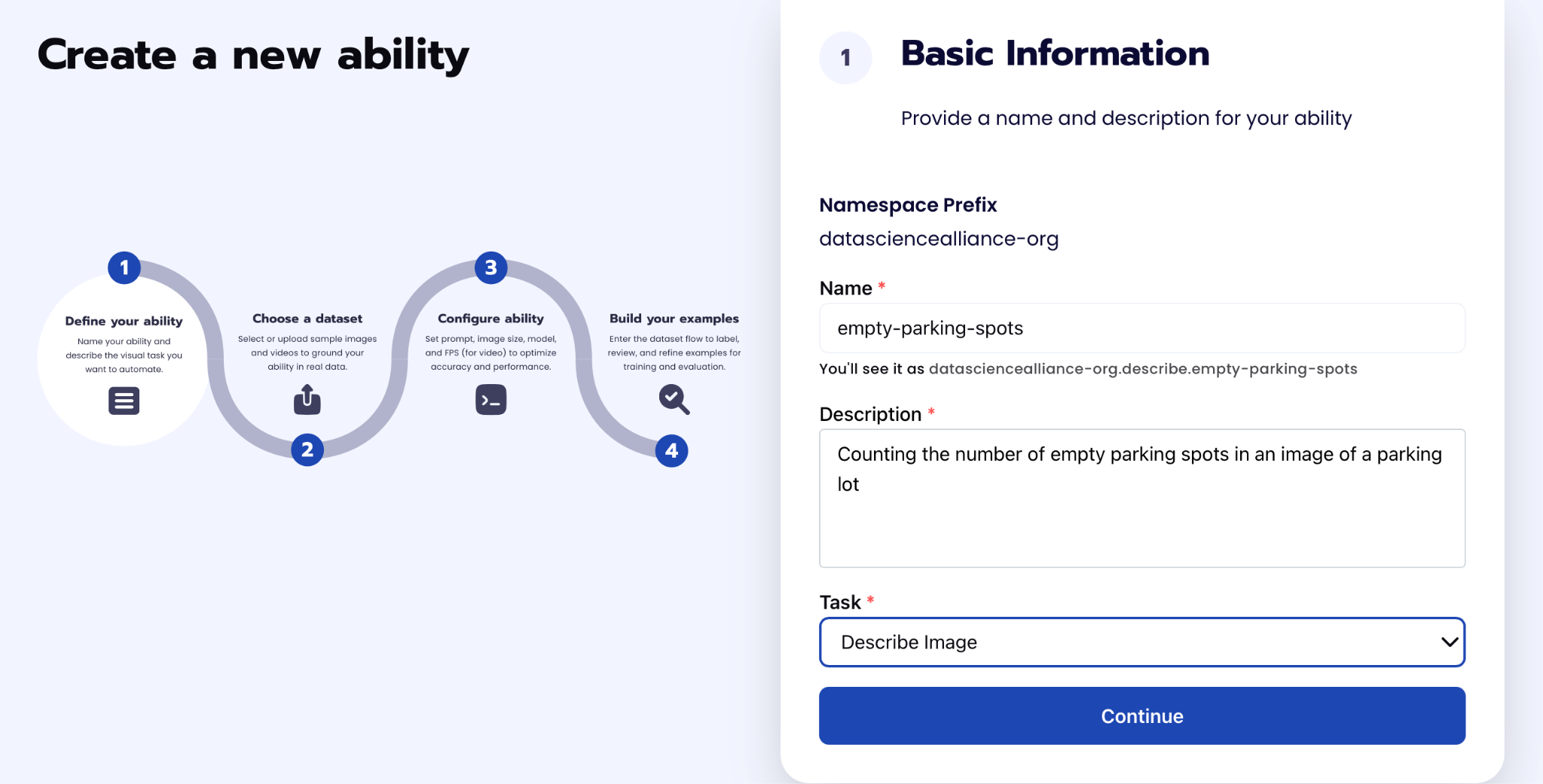
Step 2: Configuration
In the Configuration section, configure the model settings and provide the prompt that defines how the ability should analyze parking lot images.
The main configuration parameters are:
- Image Size: Set to 1000 × 1000 to help the model distinguish parking space boundaries, particularly in large parking lots with numerous small or distant parking stalls.
- Max Tokens: Set to 10, since the expected output is a single integer representing the number of empty parking spots. This limits unnecessary text generation.
- Prompt: Defines the counting procedure and instructs the model to estimate the total parking capacity, count occupied spaces, and calculate the number of empty parking spots.
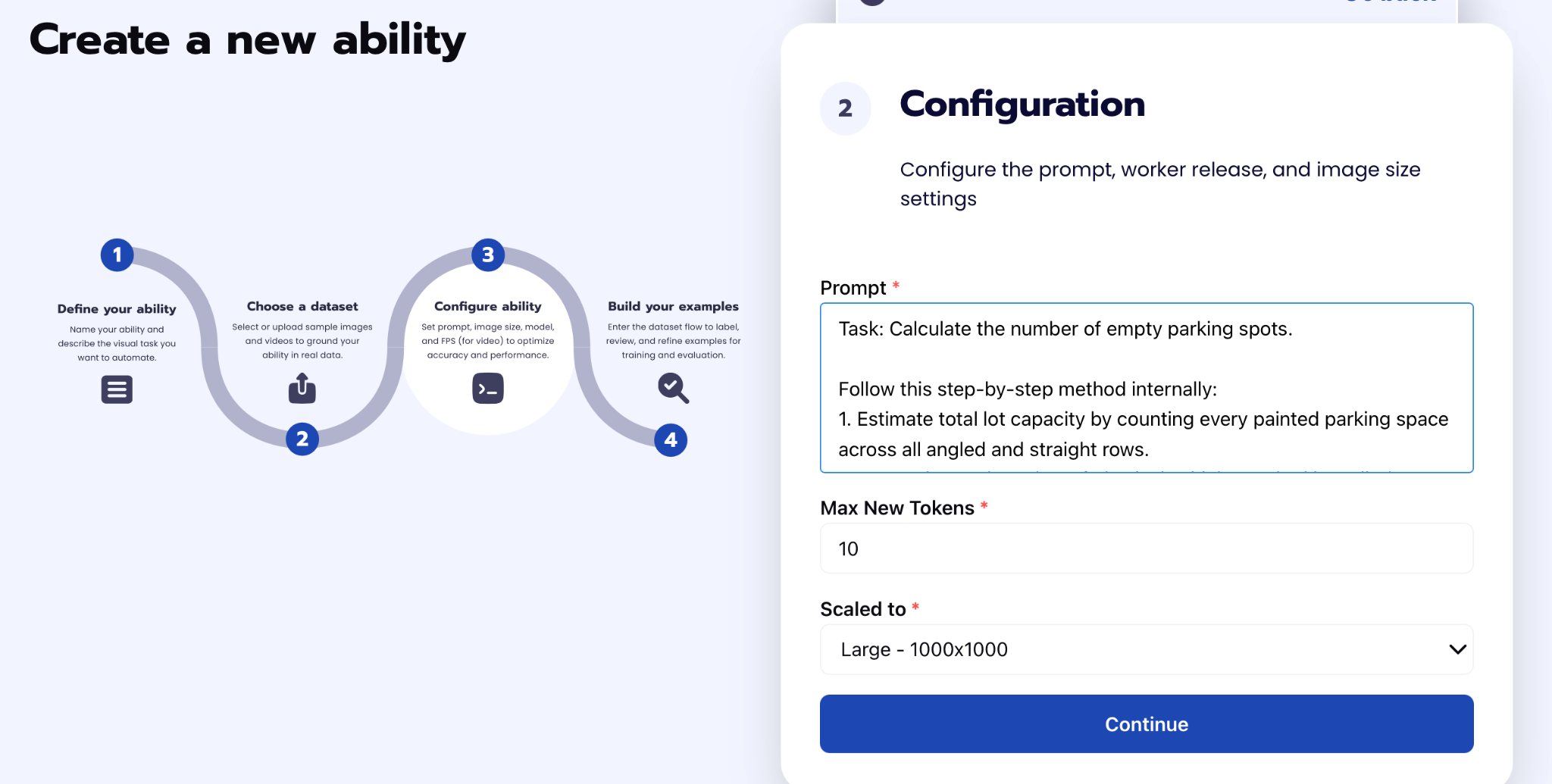
The ability uses a capacity-based counting approach, calculating the number of empty parking spots by subtracting the number of occupied spaces from the total number of designated parking stalls.
Prompt:
“ Task: Calculate the number of empty parking spots.
Follow this step-by-step method internally:
1. Estimate total lot capacity by counting every painted parking space across all angled and straight rows.
2. Count the total number of physical vehicles parked in stalls (treat cars covered with car covers/tarps as occupied).
3. Subtract occupied vehicles from total capacity (Total Capacity - Occupied Cars = Empty Spots).
Rules:
- Treat all stalls purely as geometrical shapes on the pavement.
- Exclude driving aisles and directional arrows.
- Do not print your work, breakdown, or reasoning.
Output Requirement:
Output ONLY the final calculated integer for the empty spots.“
This prompt encourages the model to follow a systematic counting procedure rather than directly estimating the number of empty spaces. By treating parking stalls as geometric shapes and explicitly excluding driving aisles and directional arrows, the ability aims to reduce counting errors caused by non-parking areas.
The model performs the calculations internally and returns only the final integer, making the output straightforward to interpret and integrate into parking monitoring applications.
Step 3: Test the Describe Ability
After creating the Describe ability, test it on several parking lot images captured from different perspectives, such as aerial views, elevated cameras, or parking lot surveillance cameras. The expected output should be a single integer representing the total number of empty parking spots visible in the image.
For example, if an image shows a parking lot with 20 marked parking spaces, 6 of which are occupied by vehicles, the expected output should be 14. The model should internally estimate the total parking capacity, count the occupied spaces, and subtract the occupied count from the total capacity.
If an image contains multiple rows of parking spaces with different orientations, including straight and angled parking arrangements, the ability should account for all visible designated parking stalls without counting driving aisles, directional arrows, or other non-parking areas.
If an image shows a fully occupied parking lot, the expected output should be 0. Similarly, if the parking lot is completely empty, the output should reflect the total number of visible marked parking spaces.
Testing should include images with varying parking lot sizes, occupancy levels, lighting conditions, and camera perspectives. More challenging examples, such as parking lots with partially obscured markings, shadows, trees, or covered vehicles, can help assess the ability's robustness.
Step 5: Review the Output
After testing the ability, review the predicted count to make sure the model is identifying and counting empty parking spots accurately and consistently.
Check whether:
- The predicted number of empty parking spots matches the actual number of available marked spaces in the image.
- Both straight and angled parking arrangements are correctly considered.
- All visible parking rows are included, including those near image boundaries.
- Occupied parking spaces are correctly excluded from the empty-space count.
- Vehicles covered with protective covers or tarps are treated as occupying parking spaces.
- Driving aisles, directional arrows, and other non-parking areas are not incorrectly counted as parking spaces.
- Shadows, pavement textures, and other visual features are not mistaken for parking stall boundaries.
- Partially obscured or faded parking markings do not lead to significant overcounting or undercounting.
- The model avoids counting the same parking space more than once.
- The output contains only a single integer, without explanations, intermediate calculations, or additional text.
To evaluate the accuracy of the ability, manually count the empty parking spots in selected test images and compare these counts with the model's predictions. Testing across multiple parking lot layouts and occupancy levels can help identify situations where the model performs reliably and where counting errors are more likely.
If the output consistently undercounts or overcounts parking spaces, review whether the model is correctly estimating the total parking capacity and distinguishing occupied stalls from empty ones. For challenging images, increasing the image resolution or refining the counting instructions may help improve accuracy. However, prompt adjustments should be evaluated across multiple images to ensure they improve overall performance rather than a single test case.
Tips for Accuracy
1. Use a Capacity-Based Counting Approach
Rather than directly counting empty parking spots, instruct the model to estimate the total parking capacity and subtract the number of occupied spaces.
Empty Spots = Total Parking Capacity − Occupied Vehicles
This provides a systematic approach to counting available parking spaces across different parking lot layouts.
2. Identify Parking Stalls by Their Geometry
Parking spaces should be identified based on their painted boundaries and geometric arrangements. The model should account for both straight and angled parking rows while excluding driving aisles, directional arrows, and other non-parking areas.
3. Define Edge Cases
Common challenges include:
- Shadows or pavement textures being mistaken for parking boundaries.
- Faded or partially obscured parking lines causing spaces to be missed.
- Vehicles blocking the visibility of parking markings.
- Covered vehicles being incorrectly treated as empty spaces.
- Parking spaces near image boundaries being overlooked.
- Driving aisles or other non-parking areas being counted as available spaces.
Our prompt explicitly excludes driving aisles and directional arrows and treats covered vehicles as occupied spaces.
4. Use Diverse Parking Lot Images
Test the ability on parking lots of different sizes, layouts, and occupancy levels. Include straight and angled parking arrangements, varying lighting conditions, and different camera perspectives.
Challenging images with trees, shadows, and partially obscured parking markings can help evaluate the model's robustness.
5. Use Sufficient Image Resolution
Higher image resolution helps the model distinguish parking stall boundaries, especially in large parking lots where individual spaces appear small.
For this ability, the image size was set to 1000 × 1000, which improved counting performance during testing.
6. Keep the Output Simple
The model should perform its calculations internally and return only a single integer representing the number of empty parking spots.
The maximum output token limit was set to 10, since no explanations or intermediate calculations are required.
7. Validate Predictions Across Multiple Images
Compare the model's predictions with manually counted parking spaces to assess accuracy. Evaluate prompt changes across several images rather than optimizing for a single example.
Our capacity-based counting prompt produced promising results across different parking lot layouts, although complex scenes with obscured markings may still lead to counting errors.
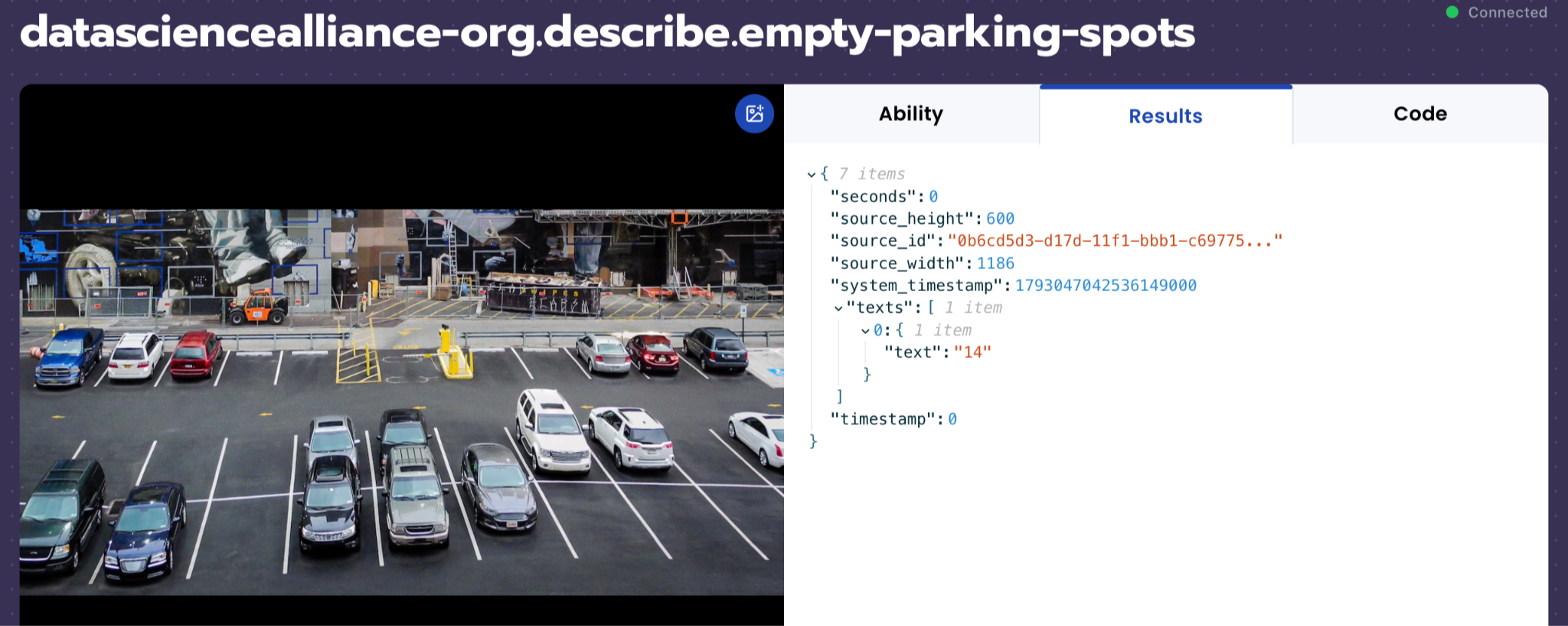
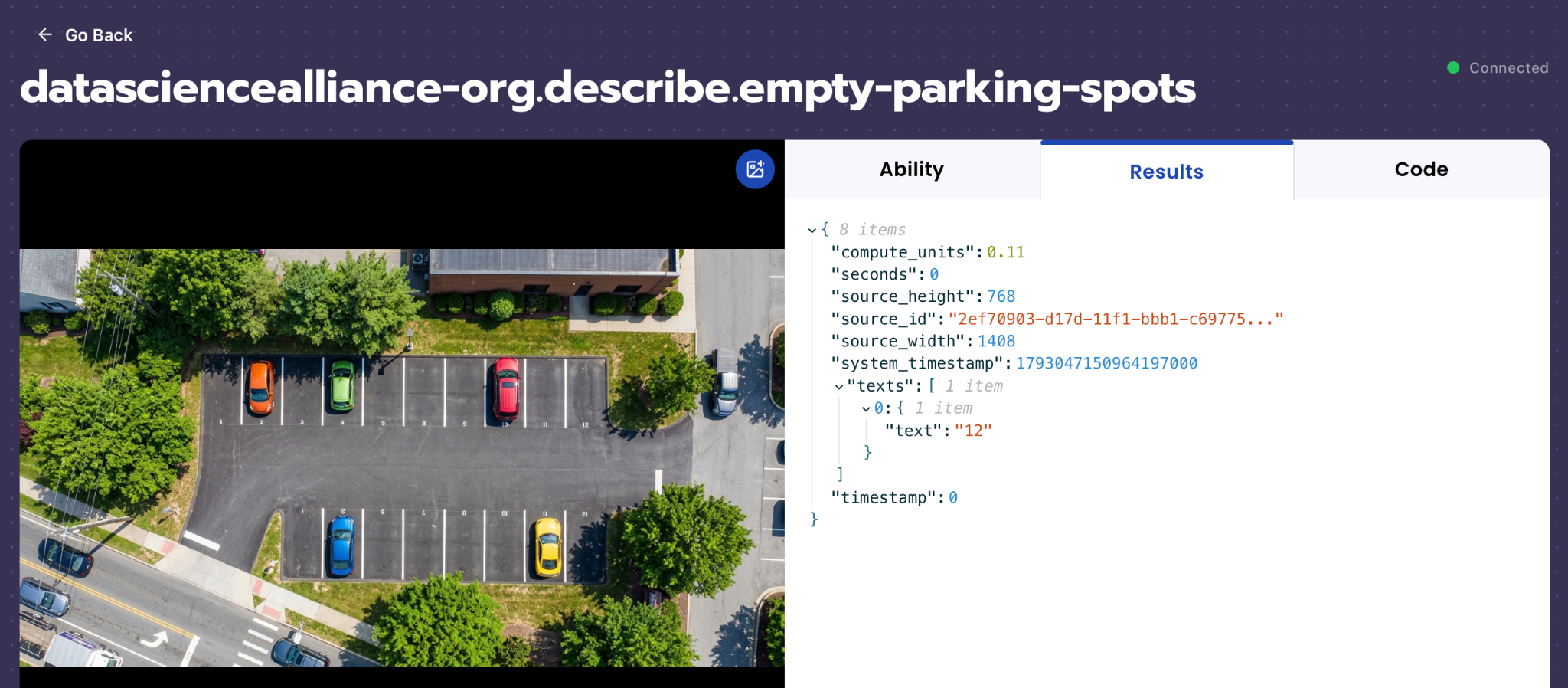
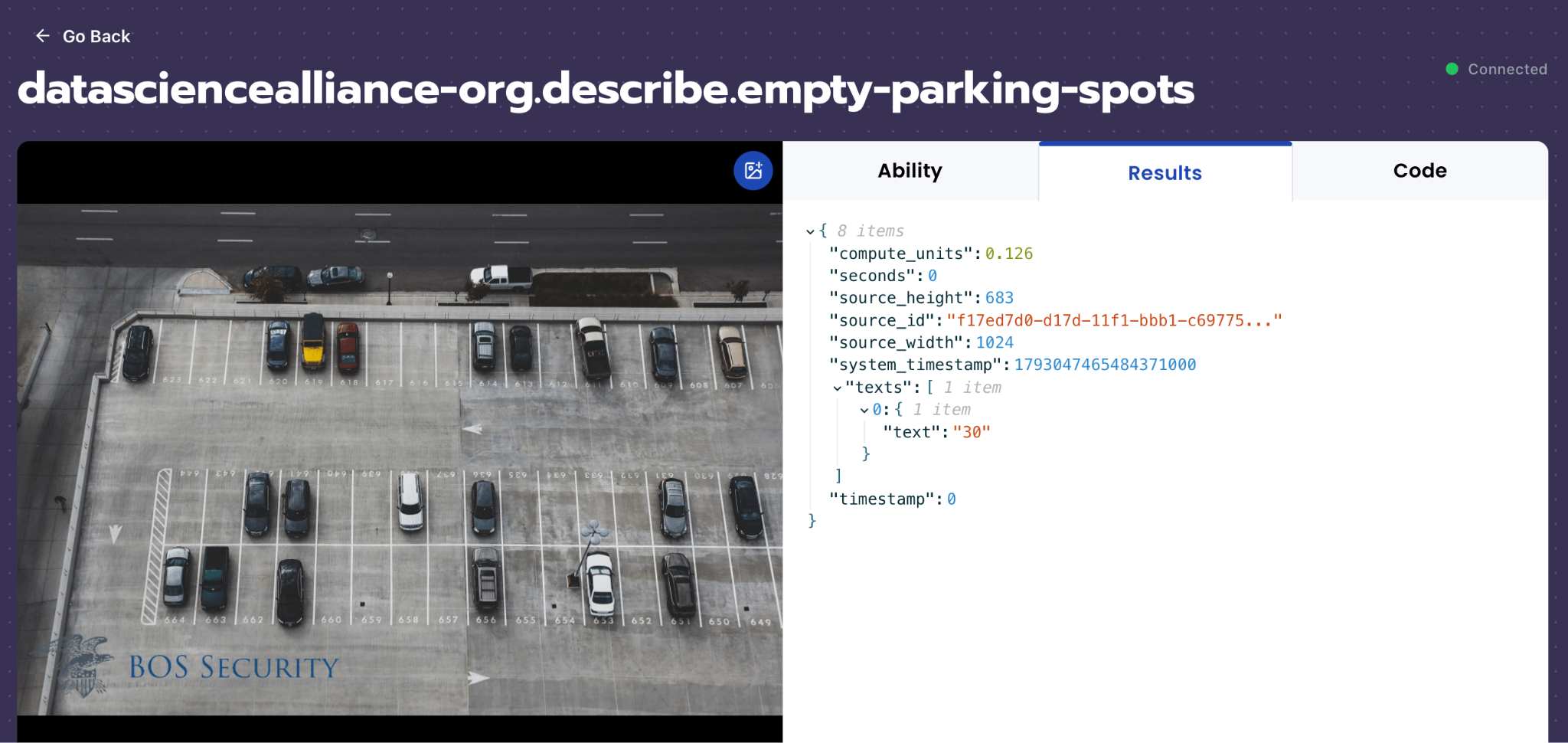
Sample Results:
Get early access
Want to move faster with visual automation? Request early access to Abilities and get notified as new vision capabilities roll out.