
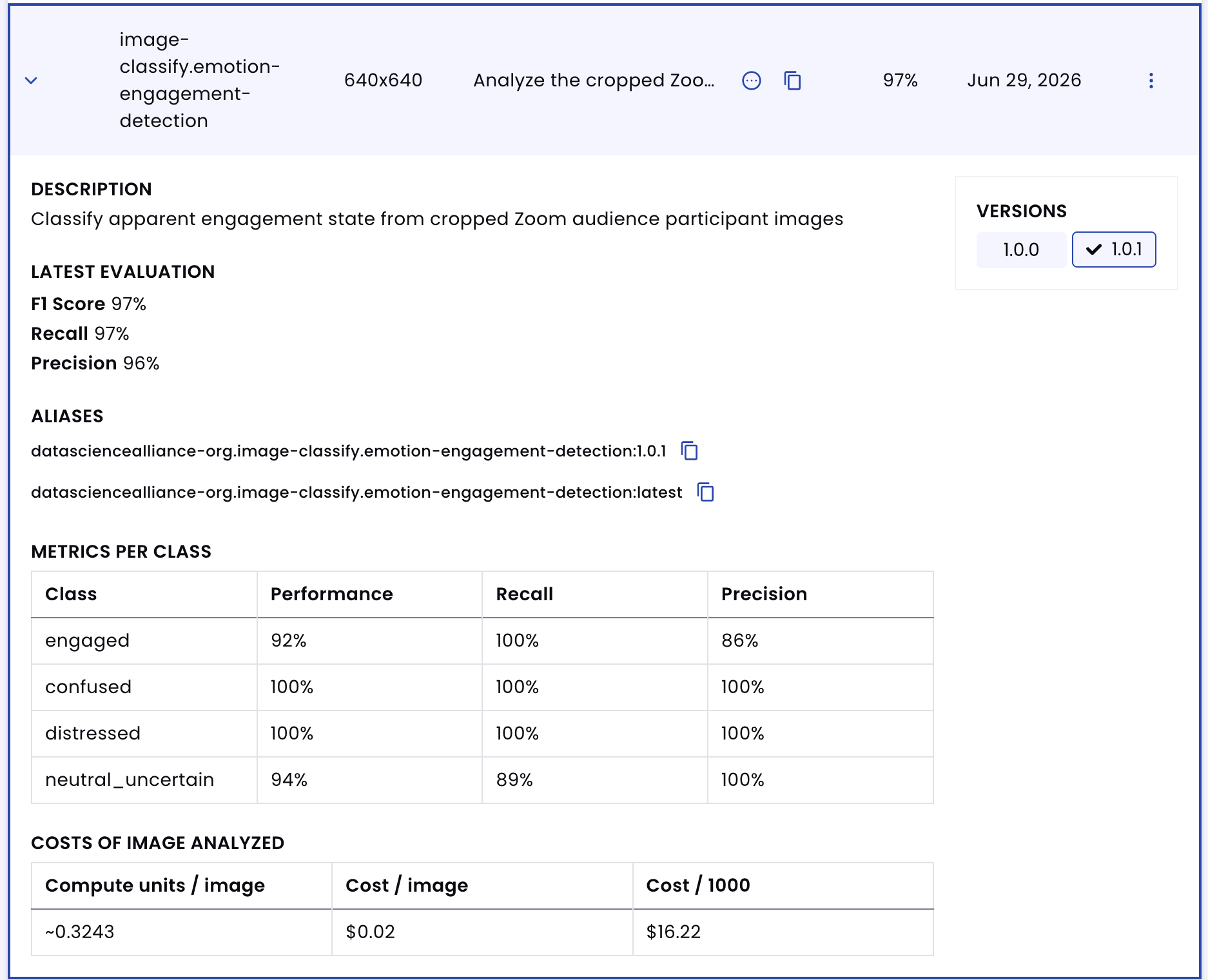
Emotion & Engagement Detection
Classify apparent engagement state from cropped Zoom audience participant images
datasciencealliance-org.image-classify.emotion-engagement-detection:latest
Prompt
Analyze the cropped Zoom audience participant image and assign exactly one label from the following list: ['engaged', 'confused', 'distressed', 'neutral_uncertain']. This task is based only on visible facial expression, head pose, gaze direction, and body language in the cropped image.
...Run the full prompt in your EyePop.ai dashboard
Input
Image
Output
Single classification label: engaged, confused, distressed, or neutral_uncertain
Image size
640x640
Model type
EyePop.ai VLM

How It Works
Classify with Emotion & Engagement Detection
Problem: Video meetings, online classes, webinars, and virtual presentations often include many audience participants at once. It can be difficult for hosts, instructors, or presenters to understand whether the audience appears engaged, confused, distressed, or neutral over time. Manually reviewing meeting footage can be time-consuming and does not scale well for long sessions or large audiences.
Being able to automatically classify apparent engagement state from cropped participant images can help summarize audience response during a meeting, lecture, training session, or remote event.
The Classify task on the Abilities tab can analyze a cropped Zoom audience participant image and return a single label describing the apparent visual state shown in the crop.
For example, an image of a participant looking toward the screen with an upright posture, focused eyes, or a slight attentive smile should be classified as engaged.
An image of a participant with furrowed brows, a tilted head, squinting, or a questioning facial expression should be classified as confused.
An image of a participant with a visibly upset expression, hands covering the face, strong frown, or overwhelmed body language should be classified as distressed.
An image of a participant who appears neutral, blurry, partially visible, looking away, poorly lit, or difficult to interpret should be classified as neutral_uncertain.
We will need to separate true visual engagement cues from confusing cases such as neutral facial expressions, bad webcam lighting, blurry images, side-facing participants, camera-off tiles, serious concentration, mild tiredness, and ambiguous expressions. The model should only classify the apparent visual state based on visible facial expression, head pose, gaze direction, and body language. It should not identify the person or infer personal attributes.
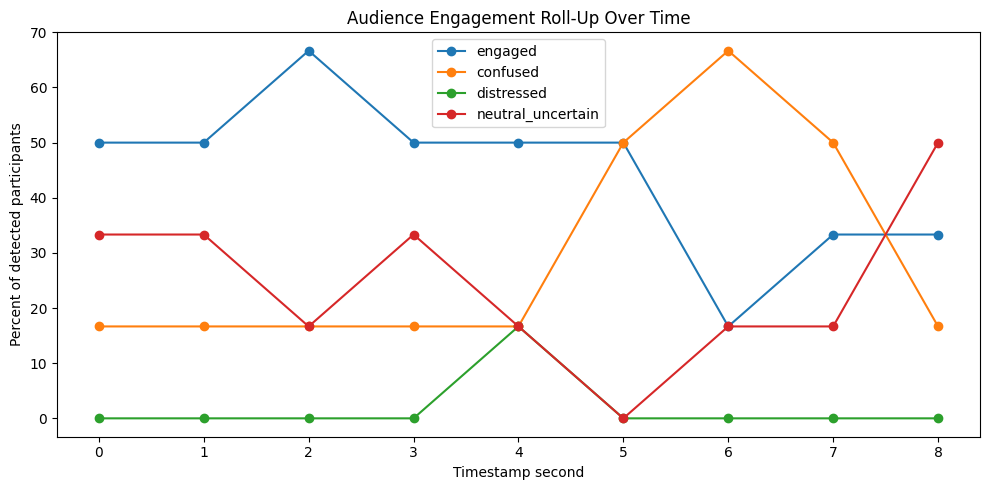
Our expected inputs are cropped participant images from Zoom-style video frames, and the expected output will be one classification label: engaged, confused, distressed, or neutral_uncertain. In the full workflow, the video is sampled at 1 frame per second, each participant is detected and cropped, the emotion-engagement classifier is run on each crop, and the results are aggregated into a roll-up graph of apparent audience sentiment over time.
Step 1: Create a Classify Ability
Go to the Abilities tab and select the button Create Ability.
Fill out basic information about the ability such as its name and the description of the task itself. Since we are assigning one label to each cropped participant image, select the Task Type as Classify.
Name: emotion-engagement-detection
Description: Classify apparent engagement state from cropped Zoom audience participant images
Step 2: Task Configuration
To configure the task, select a dataset for the specific task. If you have already uploaded your cropped Zoom participant images in a dataset, simply select the name of your dataset.
However, if you haven't already done so, select and upload your cropped participant images. Since this is a Classify ability, create the labels engaged, confused, distressed, and neutral_uncertain.
For best results, the dataset should use cropped images of one participant at a time rather than full Zoom gallery screenshots. The full video pipeline can detect each person or participant tile first, crop each person, and then pass the crop into this ability. This helps the classifier focus on the participant's visible face, posture, gaze direction, and body language instead of the entire meeting screen.
For the dataset, include a balanced number of examples for each label. The dataset should include participants with different webcam angles, lighting conditions, backgrounds, facial expressions, head poses, and crop quality. It should also include hard examples such as focused but non-smiling participants, neutral participants looking away, blurry crops, low-light webcam images, and partially visible faces.
Step 3: Classify Configuration
Our next step is to configure the prompt, select the model, and set the image size. For this use case, we recommend using the below prompt and settings for highest accuracy and best results.
Max New Tokens: 10
Scaled to: Medium - 640x640
FPS: --NA-- for the image classification ability; 1 FPS in the video processing pipeline
Prompt:
Analyze the cropped Zoom audience participant image and assign exactly one label from the following list:
['engaged', 'confused', 'distressed', 'neutral_uncertain']
This task is based only on visible facial expression, head pose, gaze direction, and body language in the cropped image. Do not identify the person. Do not infer identity, age, gender, ethnicity, or any personal attributes. Classify only the apparent visual state shown in the image.
Choose 'engaged' when the participant appears visually attentive, focused, or actively participating in the meeting. This includes looking toward the screen or camera, upright posture, leaning slightly forward, focused eyes, serious concentration, smiling, nodding, speaking, raising a hand, taking notes while attending to the screen, or otherwise appearing attentive. A participant can still be engaged even if they are not smiling.
Choose 'confused' only when the participant shows clear visual cues of confusion or uncertainty. This includes furrowed brows, puzzled facial expression, tilted head, squinting at the screen, visibly questioning expression, raised eyebrow with uncertainty, or a hand near the face while looking puzzled. Do not choose this label for normal concentration or a serious focused face.
Choose 'distressed' only when the participant shows clear visible cues of distress or discomfort. This includes crying, visibly upset facial expression, hands covering the face, strong frown, worried or overwhelmed expression, panic-like expression, or body language that appears clearly troubled. Do not choose this label for mild tiredness, neutral expression, poor lighting, or normal concentration.
Choose 'neutral_uncertain' when the participant appears neutral, expressionless, tired, distracted, partially visible, blurry, looking away, camera-off, too small to read, occluded, poorly lit, or when there is not enough visual evidence to confidently choose engaged, confused, or distressed. Do not choose 'neutral_uncertain' for a participant who appears focused and attentive toward the screen, even if their expression is serious or not smiling.
If the participant is looking toward the screen with a focused or attentive posture, prefer 'engaged' over 'neutral_uncertain'. If the participant is unreadable, looking away, blurry, occluded, or visually ambiguous, choose 'neutral_uncertain'.
Return only the single best-fitting label.
We chose Max New Tokens to be 10 because the model only needs to return one short classification label. In addition, we use an image size of 640x640 to preserve enough detail to distinguish facial expression, gaze direction, head pose, and upper-body posture in each cropped participant image. Since the ability itself classifies still image crops, FPS is not part of the image classification ability. However, in the full video workflow, Zoom frames can be sampled at 1 frame per second before cropping participants and running the classifier.
Step 4: Test the Classify Ability
After creating the Classify ability, test it on several cropped participant images from different engagement states. The expected output should be exactly one of the following labels: engaged, confused, distressed, or neutral_uncertain.
For example, if the image shows a participant sitting upright, looking toward the screen, and appearing focused or attentive, the output should be engaged. The participant does not need to be smiling to be classified as engaged.
If the image shows a participant with furrowed brows, a puzzled expression, a tilted head, or a questioning look, the output should be confused.
If the image shows a participant who appears visibly upset, overwhelmed, or troubled, such as with a strong frown, hands covering the face, or worried expression, the output should be distressed.
If the image shows a participant who is neutral, looking away, blurry, partially visible, poorly lit, camera-off, or hard to interpret, the output should be neutral_uncertain.
Step 5: Review the Output
After testing the ability, review the classification output to make sure the model is returning useful and consistent labels.
Check whether:
- The classifier correctly identifies visually attentive participants as engaged.
- Focused but non-smiling participants are not incorrectly classified as neutral_uncertain.
- Serious concentration is not incorrectly classified as confused.
- Mild tiredness or neutral expression is not incorrectly classified as distressed.
- Blurry, poorly lit, or side-facing crops are classified as neutral_uncertain.
- The output contains only the single label and no extra commentary.
- The labels match the exact class names used in the dataset.
If the model misses engaged examples, add more engaged training or evaluation images where the participant is focused but not smiling. If the model overuses neutral_uncertain, strengthen the prompt distinction between focused attention and ambiguous neutral expressions. If the model confuses concentration with confusion, add more examples of serious but attentive faces under engaged and clear puzzled faces under confused.
Tips for Accuracy
1. Explicit "Neutral or Uncertain" Case
Telling the model when not to force a decision is very important for this ability. Zoom participant images are often small, blurry, side-facing, poorly lit, or emotionally ambiguous.
In our prompt, the neutral_uncertain label handles cases where the participant appears neutral, expressionless, distracted, looking away, partially visible, blurry, occluded, camera-off, or too difficult to read. This prevents the model from forcing every unclear face into engaged, confused, or distressed.
2. Define "Engaged" Broadly
Engagement does not always look like smiling. A participant can be engaged while looking serious, focused, or concentrated. If the participant is looking toward the screen with attentive posture, focused eyes, or active participation cues, the model should classify the crop as engaged.
This is important because otherwise the model may incorrectly classify focused but non-smiling participants as neutral_uncertain.
3. Define "Edge Cases"
The key to high accuracy is clearly defining the difference between apparent engagement, confusion, distress, and ambiguous neutral cases.
Examples of edge cases include:
- A focused participant with a serious face should be engaged, not confused or neutral_uncertain.
- A participant looking down while taking notes may still be engaged if their posture and context appear attentive.
- A participant looking away from the screen with a blank expression should usually be neutral_uncertain.
- A tired participant should not automatically be classified as distressed.
- A blurry or poorly lit participant should be neutral_uncertain unless the visual state is still clear.
- A participant with furrowed brows from concentration should not automatically be classified as confused.
- A participant with mild frown or neutral expression should not automatically be classified as distressed.
- A camera-off tile or unreadable crop should be neutral_uncertain.
4. Use Cropped Participant Images
To improve performance, the dataset should use cropped images of individual participants rather than full Zoom gallery screenshots. Full gallery screenshots contain multiple faces, UI elements, text, and background distractions, which can make it unclear which person the model should classify.
The intended pipeline is: Zoom video frame → detect person or participant tile → crop each participant → run the emotion-engagement classifier on each crop → store timestamp and label → aggregate labels across participants over time.
5. Use Diverse Participant Crops
The dataset should include a wide variety of cropped participant images. This includes different webcam angles, lighting conditions, facial expressions, head poses, backgrounds, and crop qualities.
The dataset should also include examples where the distinction between labels is difficult, such as serious but engaged participants, neutral participants looking away, confused participants with subtle puzzled expressions, and distressed participants with clear visible discomfort.
6. Separate Visual State from Personal Attributes
The ability should classify only the apparent visual state shown in the cropped image. It should not identify the participant or infer personal attributes such as identity, age, gender, ethnicity, or personality.
For this use case, the most useful fields are visible facial expression, gaze direction, head pose, and body language. The output should describe apparent engagement state only.
7. Keep the Label Set Consistent
For downstream aggregation and graphing, consistency is important. The model should always return exactly one of the four labels: engaged, confused, distressed, or neutral_uncertain.
This makes the output easier to parse, count, and visualize in a roll-up graph over time.
8. Roll Up the Results Over Time
The classifier runs on individual participant crops, but the final product can summarize the audience over time. After processing the video at 1 frame per second, count how many participants are classified as engaged, confused, distressed, or neutral_uncertain for each timestamp.
The roll-up graph can show the percentage of each label over time:
engaged_percent = engaged / total_people
confused_percent = confused / total_people
distressed_percent = distressed / total_people
neutral_uncertain_percent = neutral_uncertain / total_people
This helps summarize apparent audience engagement trends during the meeting. However, the graph should be described as apparent visual engagement or apparent audience state, not a guaranteed measure of internal emotion.

Get early access
Want to move faster with visual automation? Request early access to Abilities and get notified as new vision capabilities roll out.