
Product Defect Detection
Generate a detailed text description of any input image to determine if a product can be returned.

eyepop.describe.product-defect-detection:latest
The customer returns a product and you look for a grading score (New/Like New, Lightly Worn, Moderately Worn, Heavily Worn/Damaged) and describe the wear/tear.
Return in the format of...
...Run the full prompt in your EyePop.ai dashboard
Model type
EyePop.ai VLM

How It Works
As its name implies, the Describe Image task on the Abilities tab does exactly that: it generates a detailed text description of any input image. This is a highly versatile tool because you can use it as a foundational building block alongside other abilities, or use it on its own to get an understanding of a scene without needing to view the image directly.
We can use the Describe Image task in order to determine if a product can be returned. Returning merchandise often requires a manual, subjective inspection by customer service representatives to check for damage, wear, or policy violations. By automating this visual inspection, businesses can standardize their return policies, process refunds faster, and reduce human error at the warehouse.
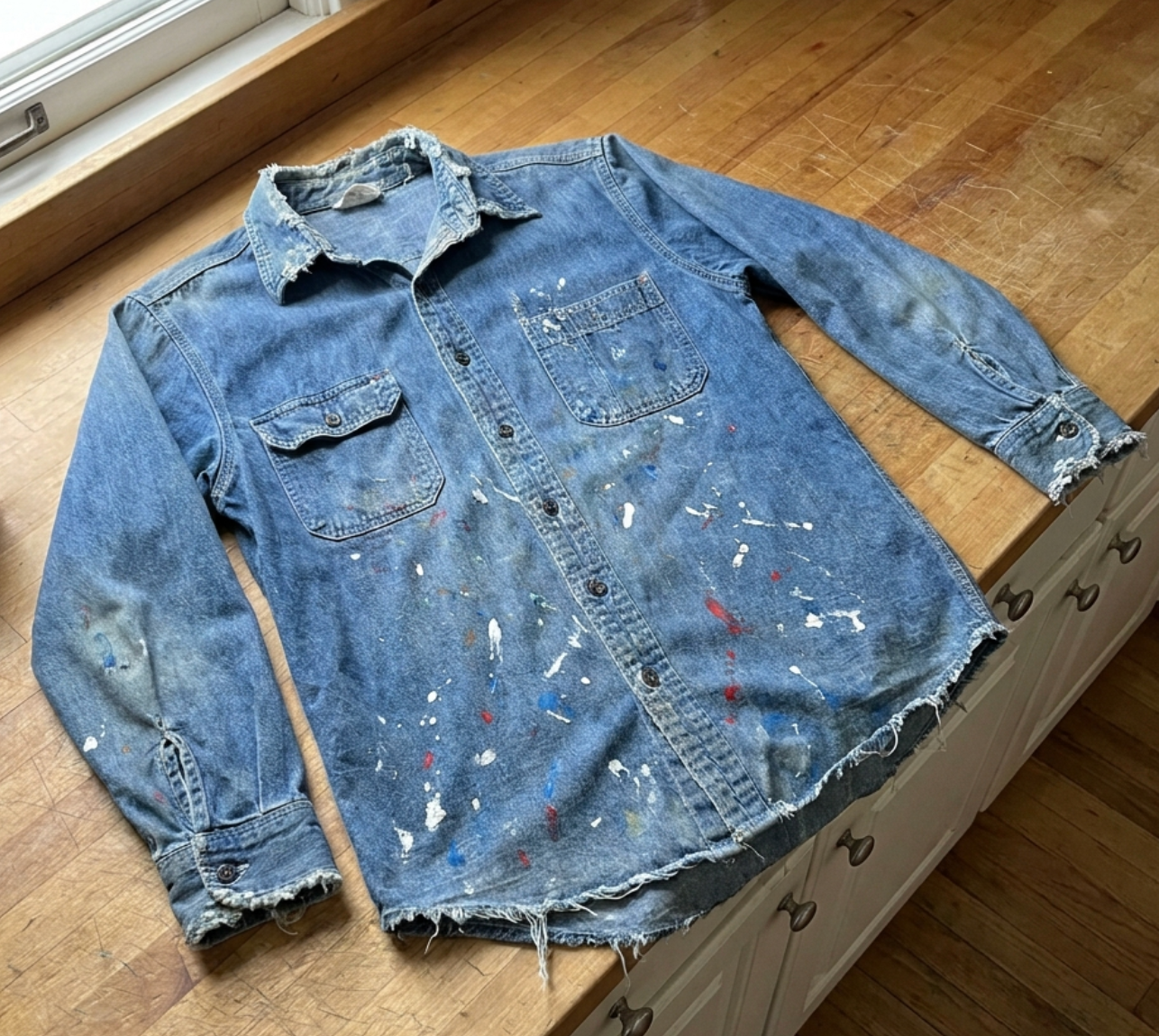
With the ability, if you upload an image of an old shirt the model shouldn't just say "an old shirt". Based on a strong prompt, it should output a thorough description of the item and a grading score determining if the object can be returned. For example:
"Grading Score: Heavily Worn/Damaged
Description: The denim shirt shows significant wear and tear, including frayed edges on the collar, cuffs, and hem. It is also covered in numerous paint splatters and stains in various colors, indicating heavy use or exposure to artistic materials. The overall condition suggests it has been extensively worn and is no longer in pristine condition."
UI Tutorial
First, let’s define the ability:
ability_prototypes = [
   VlmAbilityCreate(
       name=f"{NAMESPACE_PREFIX}.describe.product-defect-detection",
       description="Create a defect detection response based on the quality of the item",
       worker_release="qwen3-instruct",
       text_prompt=product_prompt,
       transform_into=TransformInto(),
       config=InferRuntimeConfig(
           max_new_tokens=350,
           image_size=512
       ),
       is_public=False
   )
]
The prompt we can use here is:
"The customer returns a product and you look for a grading score (New/Like New, Lightly Worn, Moderately Worn, Heavily Worn/Damaged) and describe the wear/tear.
Return in the format of..."
Next, we can actually create the ability with the following code:
with EyePopSdk.dataEndpoint(api_key=EYEPOP_API_KEY, account_id=EYEPOP_ACCOUNT_ID) as endpoint:
   for ability_prototype in ability_prototypes:
       ability_group = endpoint.create_vlm_ability_group(VlmAbilityGroupCreate(
           name=ability_prototype.name,
           description=ability_prototype.description,
           default_alias_name=ability_prototype.name,
       ))
       ability = endpoint.create_vlm_ability(
           create=ability_prototype,
           vlm_ability_group_uuid=ability_group.uuid,
       )
       ability = endpoint.publish_vlm_ability(
           vlm_ability_uuid=ability.uuid,
           alias_name=ability_prototype.name,
       )
       ability = endpoint.add_vlm_ability_alias(
           vlm_ability_uuid=ability.uuid,
           alias_name=ability_prototype.name,
           tag_name="latest"
       )
       print(f"created ability {ability.uuid} with alias entries {ability.alias_entries}")
That’s it! To run the prompt against an image here is some sample evaluation code:
from pathlib import Path


pop = Pop(components=[
   InferenceComponent(
  ability=f"{NAMESPACE_PREFIX}.describe.product-defect-detection:latest"
   )
])


with EyePopSdk.workerEndpoint(api_key=EYEPOP_API_KEY) as endpoint:
   endpoint.set_pop(pop)
   sample_img_path = Path("/content/sample_img.jpg")
   job = endpoint.upload(sample_img_path)
   while result := job.predict():
     print(json.dumps(result, indent=2))

print("Done")
After running the evaluation you can see what the model described and compare it to your source of truth. With this, you can improve your prompts and thus improve your accuracy.
Get early access
Want to move faster with visual automation? Request early access to Abilities and get notified as new vision capabilities roll out.