
Detect Personal Protective Equipment (PPE)
Quickly identify missing Personal Protective Equipment (PPE) to automatically alert when safety violations occur.
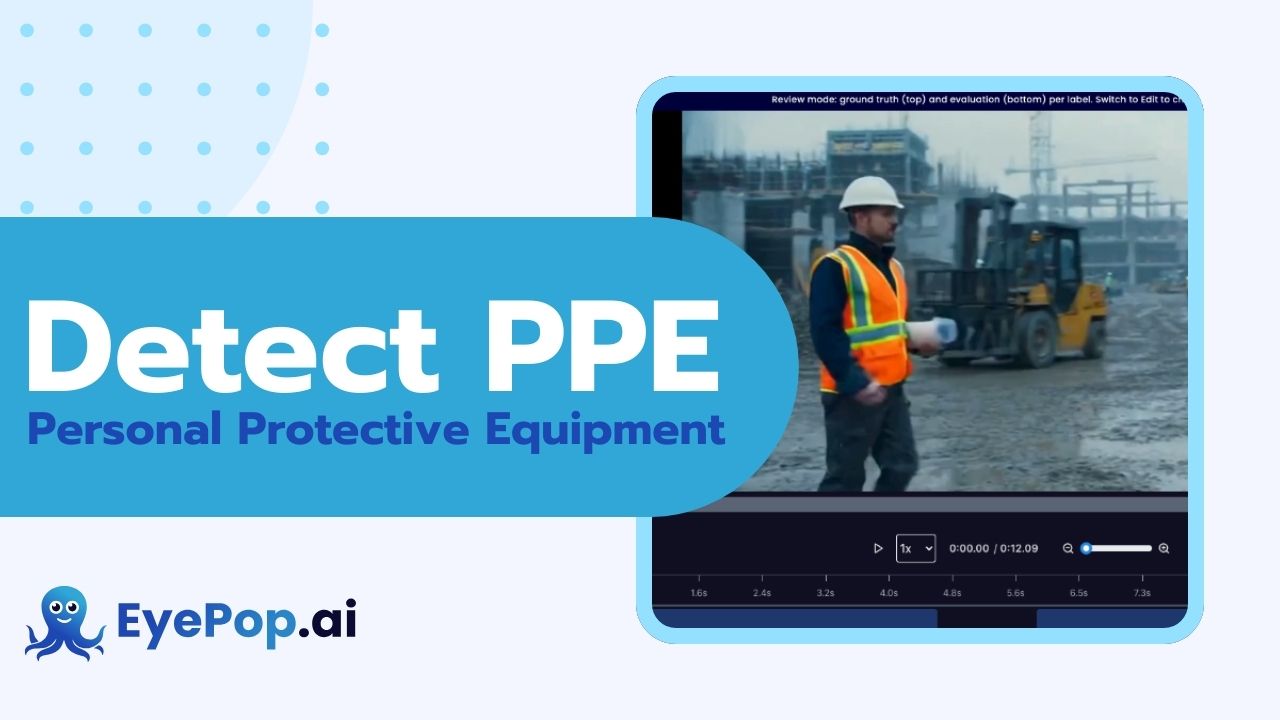
eyepop.find-events.identify-PPE:latest
Prompt
You are a Construction Safety Compliance AI. Your job is to strictly enforce safety helmet regulations for construction personnel. Analyze the image/video to verify that the primary workers in the foreground are actively WEARING safety helmets (hard hats) ON THEIR HEADS.
Subject Focus & Exclusions: Focus YOUR ANALYSIS on the main group of workers present in the...
...Run the full prompt in your EyePop.ai dashboard
Input
Video
Output
Fail or PPE_On
Image size
640x640
Model type
EyePop.ai VLM
FPS
10

How It Works
Ensuring safety on a construction site means being able to quickly identify missing Personal Protective Equipment (PPE) effectively. However, manually reviewing hours of video footage is inefficient and time consuming. Being able to automatically alert when a safety violation happens is important for compliance and correction. The Find Events task on Abilities tab can determine if a video contains specific instances of, in this case, workers not wearing helmets, and locate the occurrence in the video.
For example, a specific segment of security footage should be flagged with the label PPE_On if it shows everyone present in an active construction zone with a hard hat securely on their head.
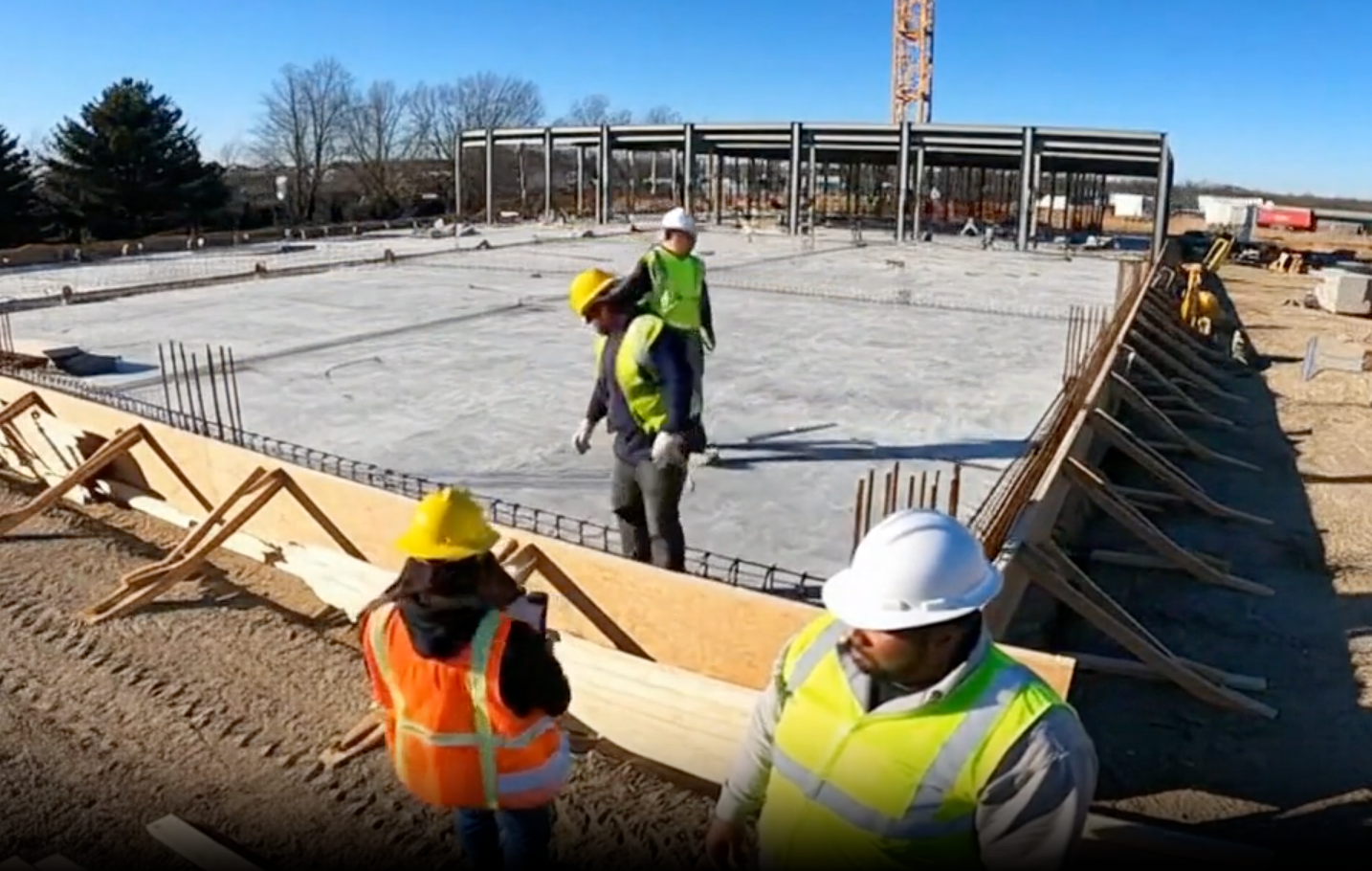
We will need to separate occurrences of people off the construction site wearing regular clothes and real cases of construction workers not wearing proper gear.
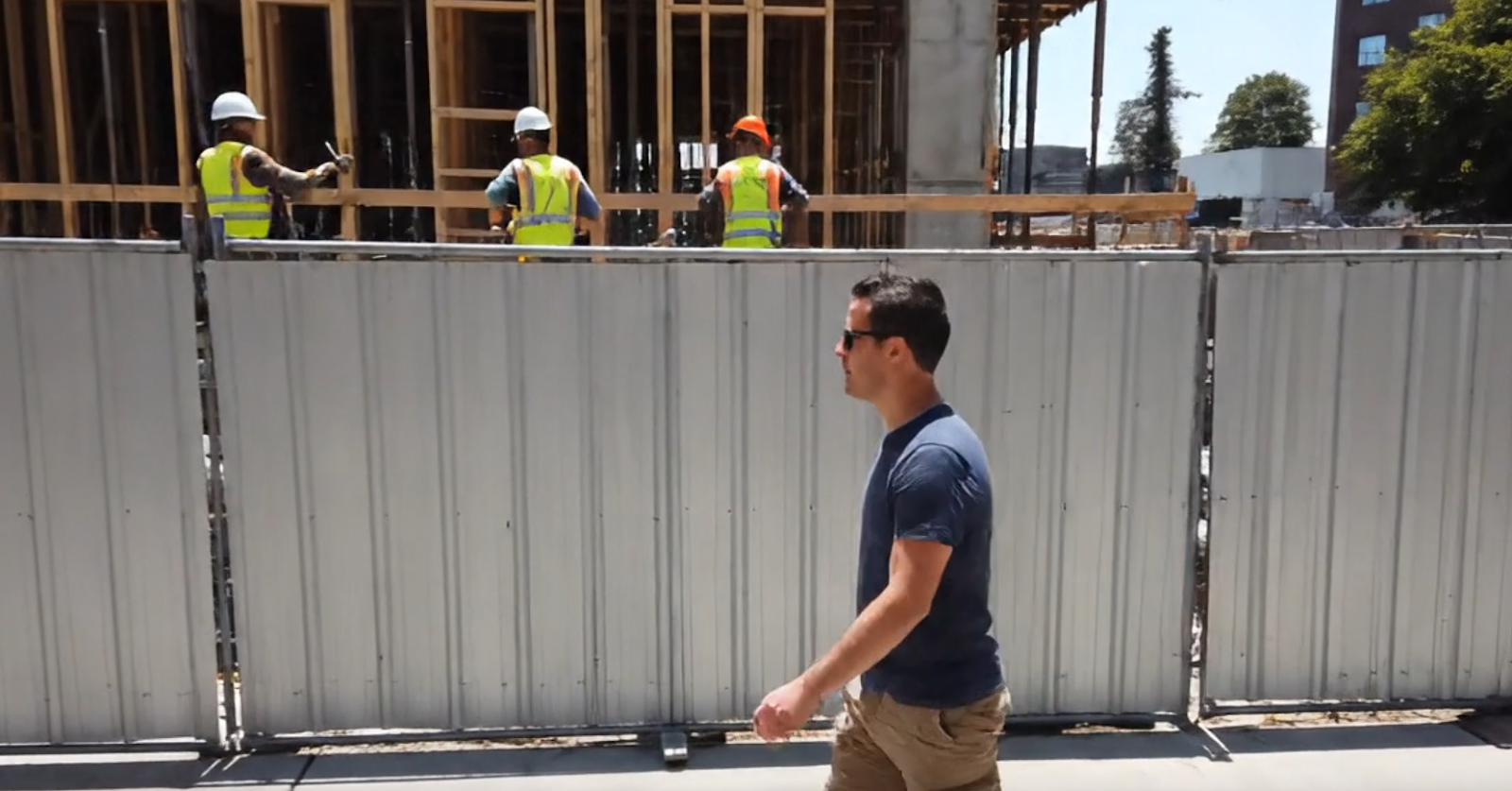
Our expected inputs are videos, and the expected output will be the timestamps identifying exactly when the PPE_On occurs throughout the footage.
UI Tutorial
Step 1: Create an Ability
Go to the Abilities tab and select the button Create Ability.
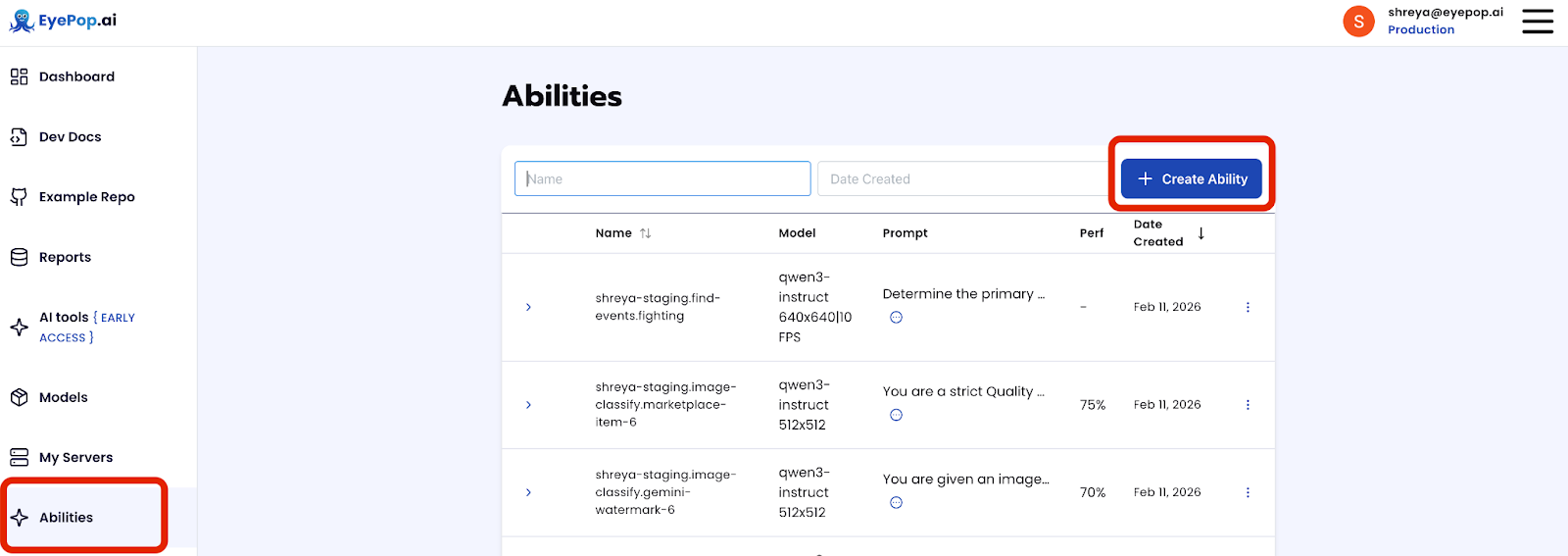
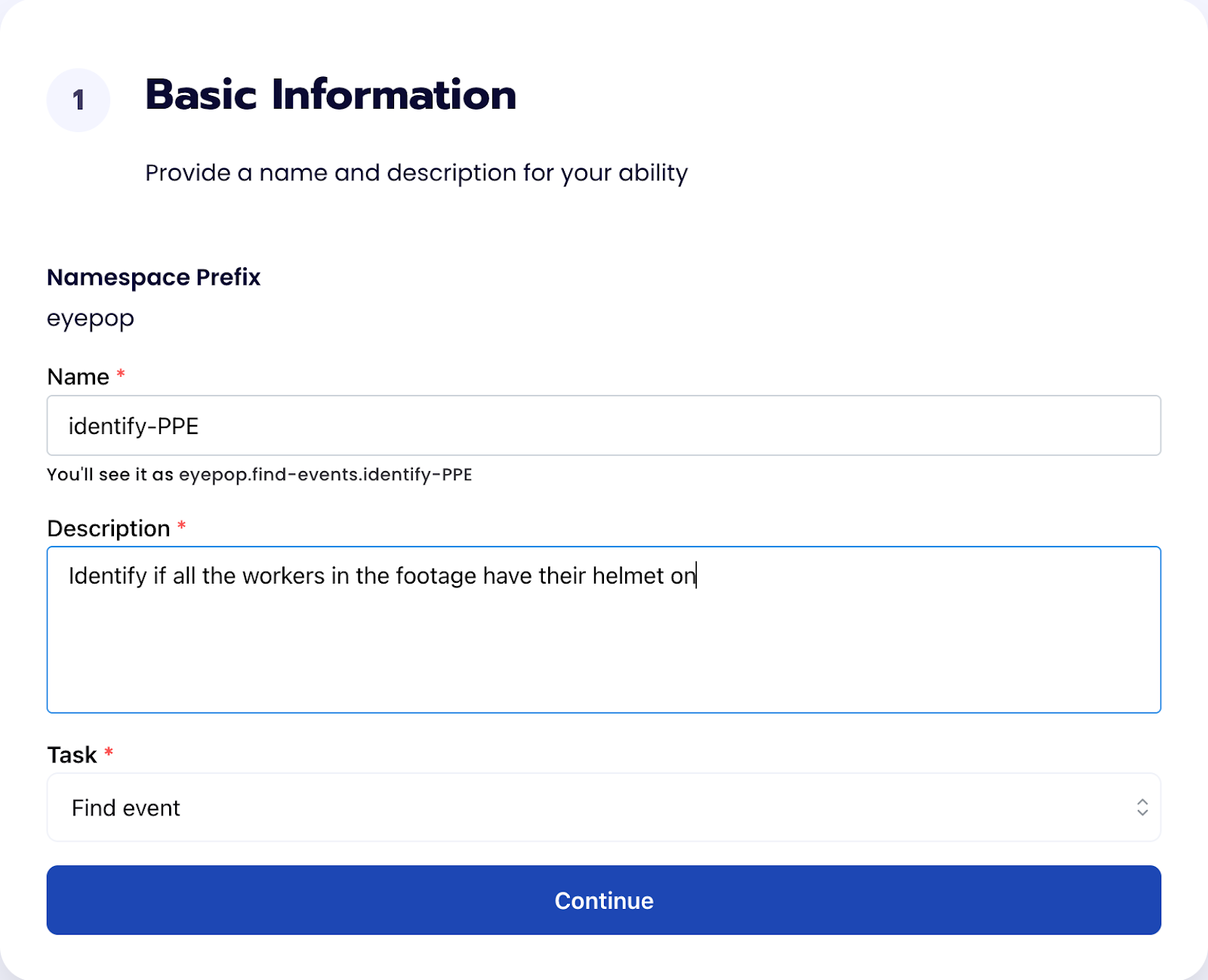
Fill out basic information about the ability such as its name and the description of the task itself. Since we are classifying an image, select the Task Type as Find Events.
Step 2: Task Configuration
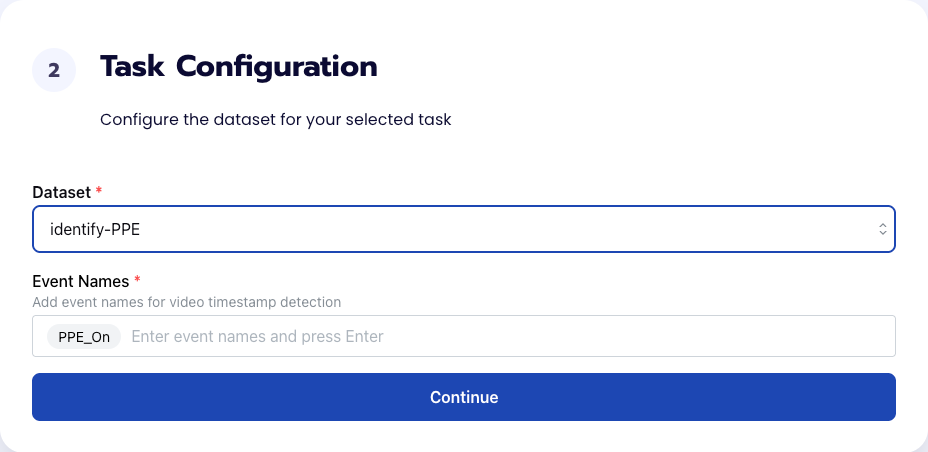
To configure the task, we need to select a dataset for the specific task. If you have already uploaded your videos in a dataset simply select the name of your dataset. However, if you haven’t already done so then select <New Dataset> and upload your videos, label them by identifying when the workers have their PPE on, and create a label PPE_On in Event Names.
Step 3: Configuration
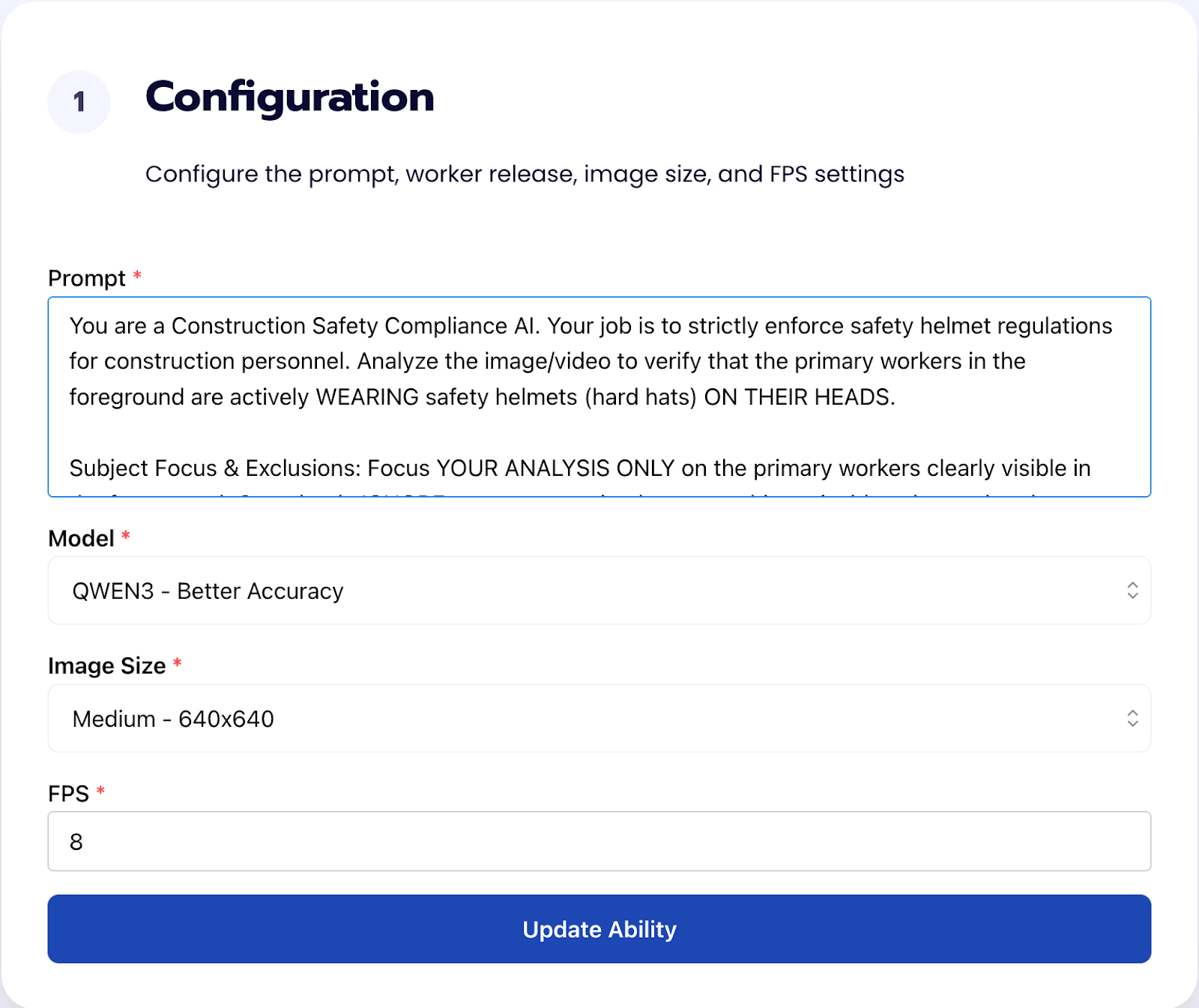
Our next step is to configure the prompt, select the model, and image size. For this use case, we recommend using the below prompt and settings for highest accuracy and best results.
Prompt:
You are a Construction Safety Compliance AI. Your job is to strictly enforce safety helmet regulations for construction personnel. Analyze the image/video to verify that the primary workers in the foreground are actively WEARING safety helmets (hard hats) ON THEIR HEADS.
Subject Focus & Exclusions: Focus YOUR ANALYSIS on the main group of workers present in the central scene. CRITICAL: If there is a "picture-in-picture" overlay or a large superimposed person in the corner of the screen, you MUST STILL evaluate the main group of workers on the actual construction site. Do not let one large overlaid figure excuse the rest of the crew. You must check every clearly visible worker standing in the main work area. Completely IGNORE only tiny figures in the deep background or people operating machinery inside cabs.
PPE Focus (HELMETS ONLY): Your ONLY task is to verify if each primary foreground worker is actively wearing a standard construction hard hat properly on their head.
The "Worn on Head" Requirement (CRITICAL): The hard hat MUST be physically on top of the worker's head. If a worker is holding a helmet in their hands, carrying it under their arm, or if a helmet is resting on the ground near them, it DOES NOT COUNT.
CRITICAL: Look at EVERY person in the center of the frame. It doesn't matter if they are holding a helmet. They must have the hardhat/helmet on their head to mark PPE_On else Fail! Even if you find one person who doesn't have it on then you must FAIL!
The Hair/Bare Head Rule: If you can see hair texture, a hairline, a hair parting, or the organic shape of a bare human head on any worker, that worker is NOT wearing a helmet.
Material & Structure Check: Look for the distinct structural features of a manufactured hard hat: a front brim, a smooth synthetic/plastic texture, and a raised crown.
You must strictly IGNORE all other PPE (face guards, glasses, vests, headphones, earmuffs). CRITICAL: Headphones, earmuffs, and communication headsets are NOT hard hats. Do not mistake the plastic band of a headset for a helmet. If a worker is wearing headphones over a bare head, a beanie, or hair, this is a violation and you MUST output Fail.
Violation Criteria: If you spot even one primary foreground construction worker whose head is exposed (visible hair or bare head), you must flag the video. It does not matter if they are holding a helmet in their hands—if it is not on their head, it is a violation.
Output Labels: Fail: Select this label if ANY primary foreground site worker has an exposed head (hair/bare head visible) or is merely holding their helmet rather than wearing it.
PPE_On: Select this label ONLY if ALL primary foreground site workers are actively wearing structural hard hats ON their heads.
Output only one label: Fail or PPE_On. No other text.
Step 4: Run Evaluation
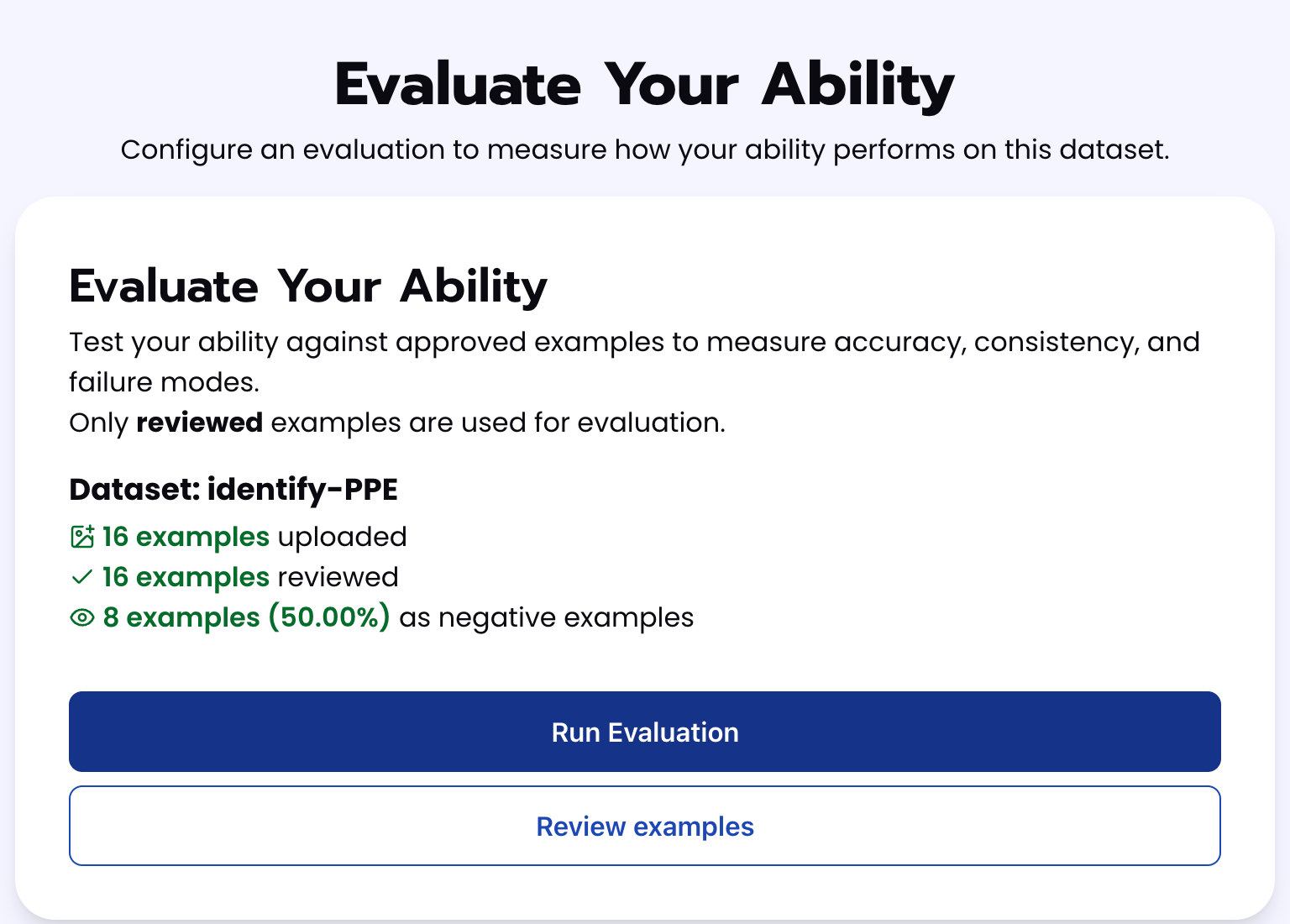
To check how well the prompt does against the dataset, our next step is to run the evaluation. If needed, review the examples in your dataset to ensure all necessary images can be used in the evaluation.
Step 5: Check Evaluation
All evaluations can be reviewed in the Abilities tab by clicking the dropdown arrow next to the associated ability-alias. Evaluations can take around 15-20 minutes to complete based on the size of the dataset.
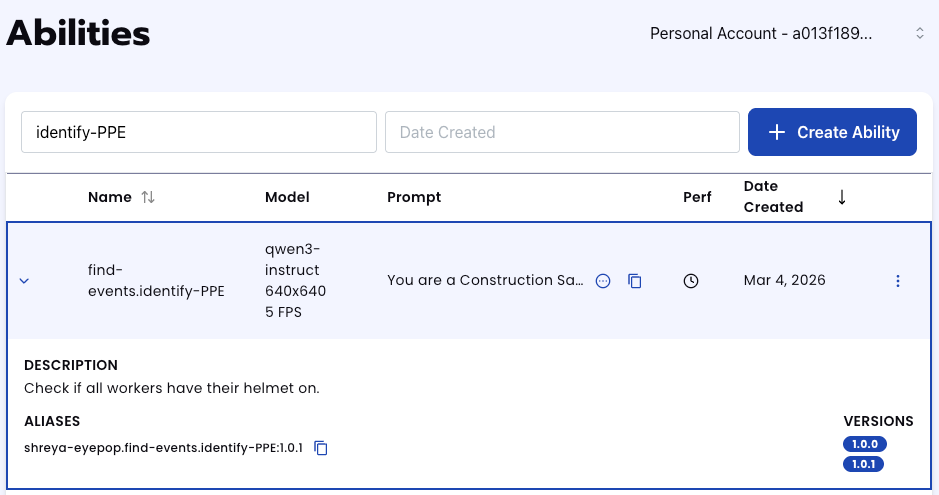
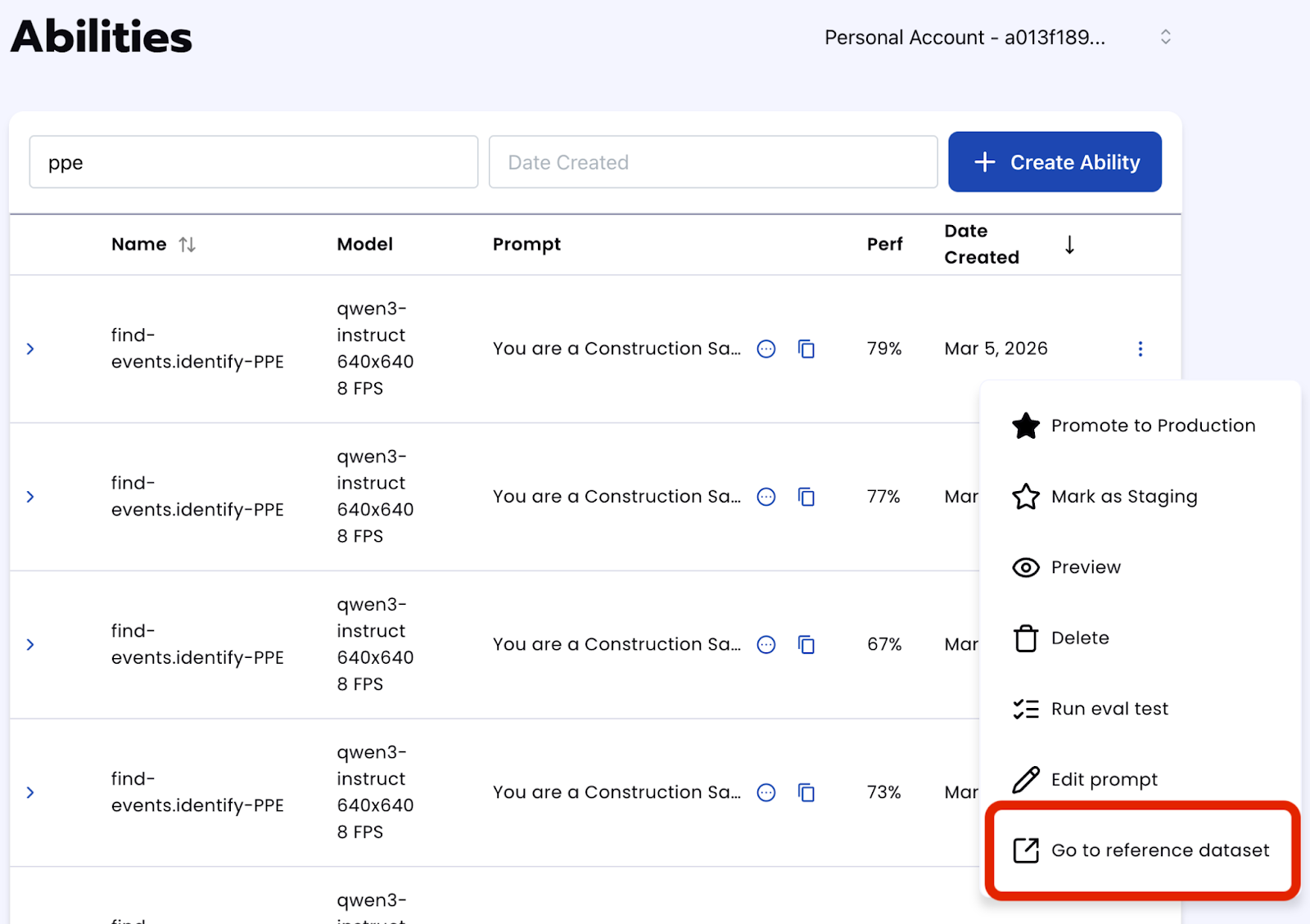
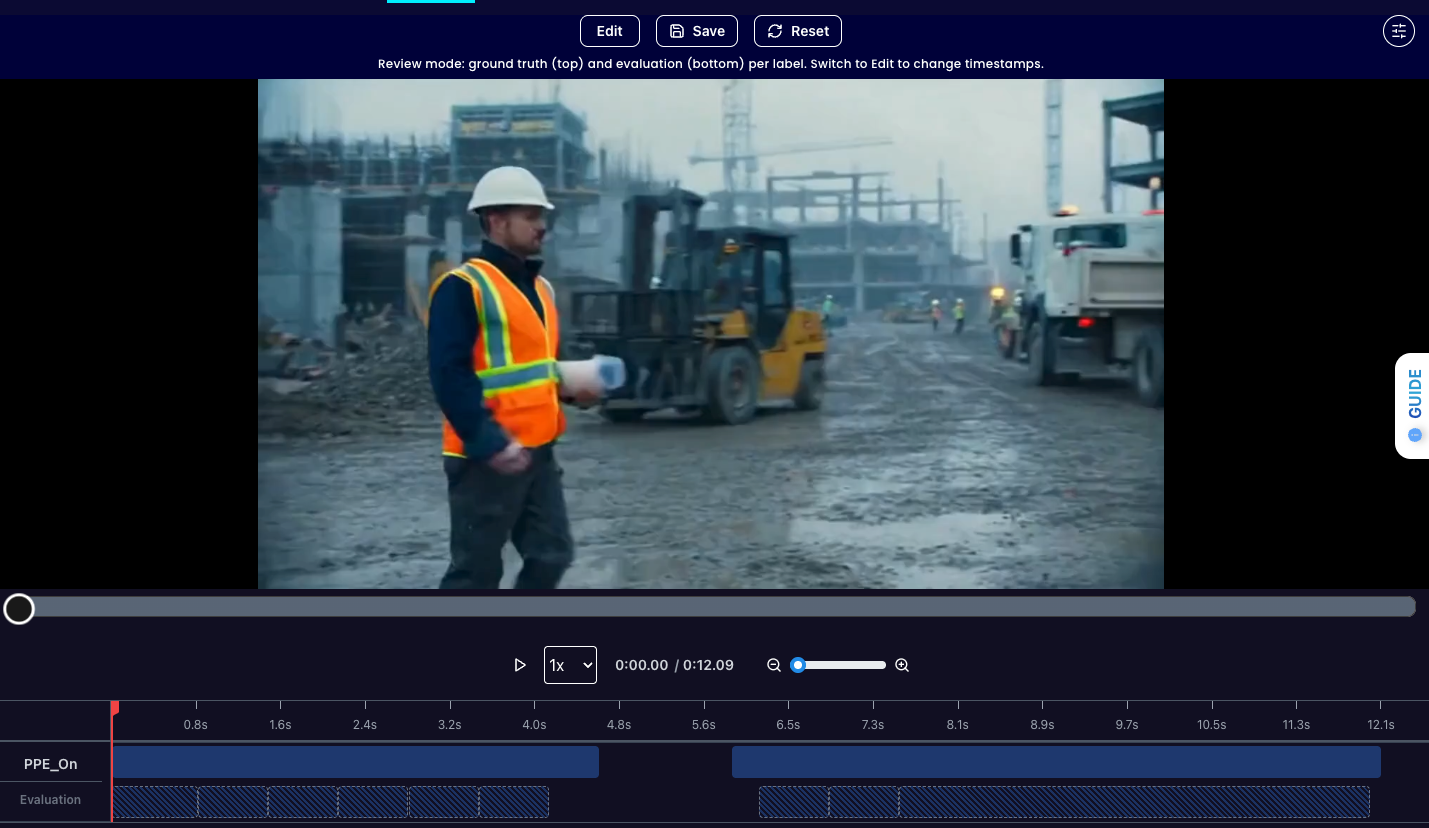
In addition to the performance, recall, and precision percentages on the abilities tab, you can see a visualization of what the model predicted by revisiting the dataset. Click on the three dots and select “Go to reference dataset”.
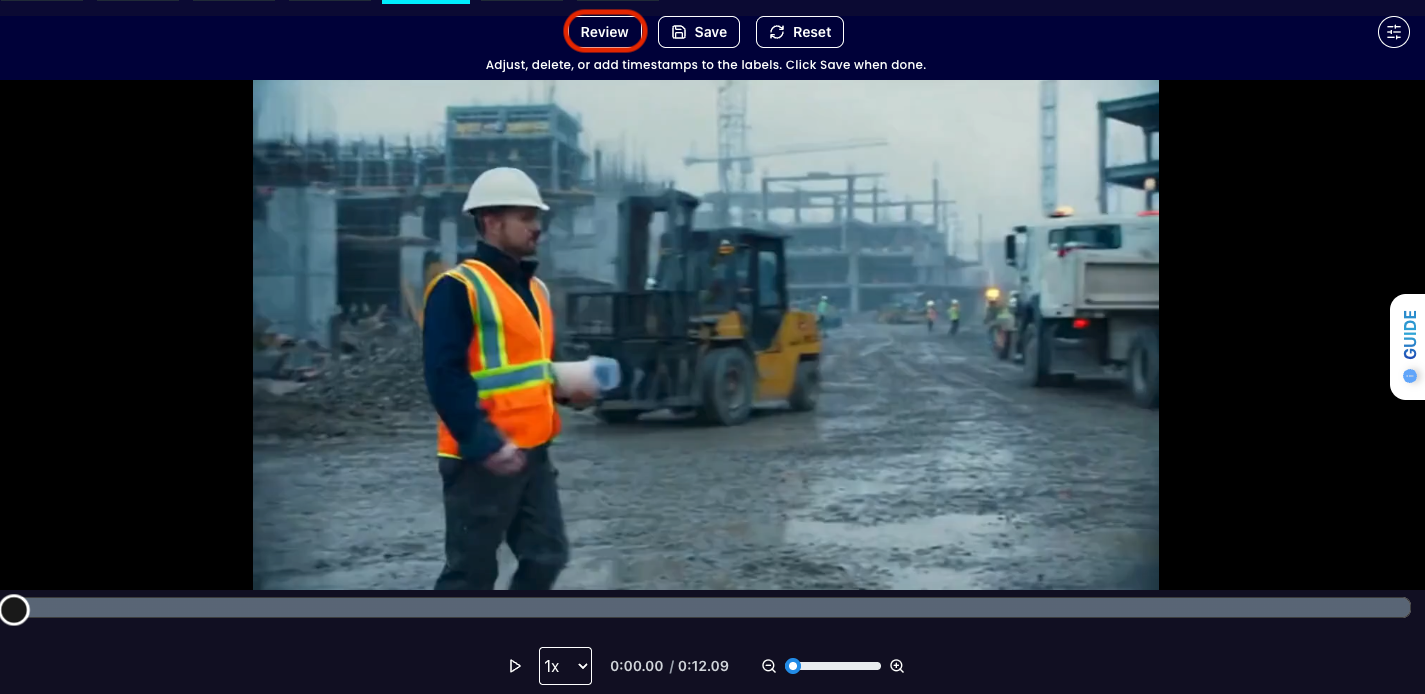
Select one of the videos in the dataset and click on the review button.
Tips for Accuracy
- Explicit “Negative” Case: Telling the model exactly what not to look for is just as important as telling it what to look for. This is because if you only define "PPE_On," the model might cast too wide a net in defining what it means to have a helmet on. In our prompt, our explicit “negative case” is the label called Fail which we identified as anything that isn’t having a helmet on. This would include videos that have empty scenery, pedestrians walking by, anything that isn’t on a construction site, and more. Since we do not include it in our labels in the dataset, it appears as _no_class in our evaluations.
- Define "Edge Cases": The key to high accuracy is a deep understanding of your specific acceptance criteria. In a marketplace context, the line between "acceptable" and "rejected" can be thin. You must be explicitly clear about where that line is drawn.
Get early access
Want to move faster with visual automation? Request early access to Abilities and get notified as new vision capabilities roll out.